Global search
Related information
 Related topics
Use global search to find records across Sage Intacct, such as customers, suppliers, transactions, dates, and amounts.
You can search broadly across Intacct or narrow your results depending on your task:
-
Quick search: find records within a single object
-
Advanced search: search across objects, or refine results using specific fields and criteria
Search results include only records that you have permission to view. Depending on your access, you might also be able to edit records directly from the results page.
Search results are updated regularly. Because indexing occurs approximately every half hour, recently created records might not appear immediately.
Global search is enabled by default in production companies. It might be disabled in sandbox, demo, or preview environments. To enable global search in these environments, contact your designated support user.
Quick search
Use quick search when you know what you’re looking for and want to search within a single object, such as for a AP purchase invoice or AR sales invoice.
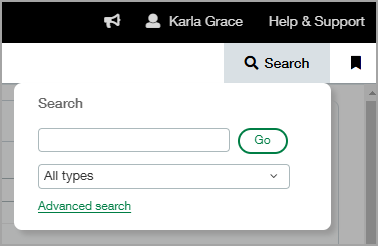
To quick search:
-
Select the magnifying glass in the top-right navigation bar.
-
Enter a value, such as a name, number, or amount.
If you're searching for an amount, enter the exact amount.
-
Select an object (for example, AP Bill - Accounts Payable AP purchase invoice).
Select a specific object when using quick search. Selecting All types means that all objects are searched, which could take some time. -
Select Go.
The results page displays all matching records.
Advanced search
Use advanced search when you need more control over your search. You can search across multiple objects or narrow results using specific fields and conditions.
To perform an advanced search:
-
Select the magnifying glass in the top-right navigation bar.
-
Select Advanced search.
The Advanced search page opens and displays all objects to which you have at least list and view permissions.
-
Select one or more objects to search.
To search by a specific field, select only one object.
If you're not sure which object to search, see the Object glossary for custom reports.
With one object, you can select from all its fields. With multiple objects, you can only select fields that both objects have in common. -
Add Additional criteria, as needed.
-
Select a field.
-
Select a search operator.
-
Enter a value.
For example, you want to find a AP purchase invoice line item but do not know the exact amount. You remember it was around 400, so you can search using 400 with an operator like greater than or equal to.
Additional Criteria
Transaction amount
greater than or equal to400 -
-
Select Search.
The results page displays matching records. If many results are returned, only a subset is shown per page, along with the total number of matches. You can sort results by selecting a column heading or refine them using filters.
Search operators
Search operators help you refine results in advanced search. Available operators depend on the field type that you select.
| Field type | Available operators |
|---|---|
| Number |
|
| Date |
|
| Text |
|
| Boolean (checkbox) |
|
Troubleshoot search
If your search returns no results, try the following:
-
Verify that you selected the correct object. Some objects return totals, while others return line-level data.
For example, you’re searching for a line item with an amount of 50.00. Selecting AP Bill returns the total AP purchase invoice amount, while AP Bill Detail returns the individual line item amount.
-
Verify the value that you entered, including spelling and exact amounts.
-
Confirm that you have permission to view the object.
-
Narrow the search to a single object.
If your searches consistently return no results, there might be a delay in indexing. If the issue continues, contact your designated support user for assistance.
