E-file 1099s—powered by TaxBandits
Related information
 Related topics
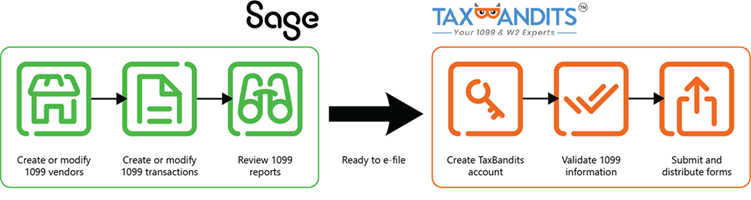
Begin the e-filing process in Sage Intacct, where you create a batch of 1099 forms. Send the batch to TaxBandits who validates that the 1099 information is correct. Continue the e-filing process on the TaxBandits website where you submit the forms to the IRS. You can also handle state filing, send forms in the mail to recipients, and grant online access to recipients.
To get a head start, create batches of 1099 forms in Sage Intacct, send them to TaxBandits. Then, review and adjust the data in preparation for e-filing.
- Verify that you have the right setup.
To e-file with TaxBandits, you need the following:
In Sage Intacct:
Subscribe to Sage Cloud Services.
Go to Company > Admin > Subscriptions > Sage Cloud Services and toggle the switch. Then, select Subscribe.
You do not need to enable any of the features within Sage Cloud Services, just a subscription to the module is enough.
Select Enable 1099 e-filing powered by TaxBandits on the Configure Accounts Payable page.
Verify that you have Accounts Payable permissions for Form 1099: Run.
If you are filing at the entity level, or are filing at the top level and have suppliers that were created at the entity level, enable Issue a separate 1099 per entity in Multi-Entity Management.
If E-file submissions is available in the Accounts Payable menu when you are in an entity, this means that Issue a separate 1099 per entity is already enabled.
In TaxBandits:
Create a TaxBandits account. How you create the account is important, so make sure to read the Help topic.
- Run the 1099 report and export the 1099 file.
Verify that suppliers and employees are set up with the correct 1099 default form and box, have the correct 1099 name, and that amounts are expected.
Verify total reportable 1099 amounts.
- Verify amounts and update 1099 information, as necessary.TaxBandits further validates information after you submit a batch for processing.
| Subscription |
Sage Cloud Services Accounts Payable |
|---|---|
| User type | Business, Employee |
| Permissions | Form 1099: Run |
-
Go to Accounts Payable > All > 1099s > E-file submissions.
The 1099 e-file submission log appears.
-
Select the Tax year that you are e-filing for.
Typically, you file tax forms after the end of the year. Therefore, the default for this dropdown is the previous year.
-
Select Add.
- Select the Year ending dropdown and select the reporting year.
Typically, this is the previous year.
-
By default, Select all suppliers and Select all employees are checked.
Alternatively, you can select a range of suppliers or employees for whom to e-file, in the From/To fields.
How to use the From and To fieldsAll From and To field pairs work the same way. Use them to get search results in as broad or as fine a range as you need, from everything in the system down to a single specific object.
To run this report for a single object:
- From the From dropdown list, select the object you want.
- From the To dropdown list, select the same object.
To run this report for a specific range of objects:
- From the From dropdown list, select the object that you want at the beginning of the range.
- From the To dropdown list, select the object that you want at the end of the range.
To run this report for all objects:
Leave both fields blank.
If you have a large number of objects or the report takes too long to process, use the From and To fields to run a series of smaller reports. For example, you can run five reports, one each for objects whose names begin with A-E, then F-J, K-O, P-T, and U-Z.
An object is a catch-all term that refers to any specific data item in the system. Customers, suppliers, items, and accounts are all examples of objects.
- If you're in the top-level of a multi-entity company and are configured to Issue a separate 1099 per entity, select an Entity.
- If applicable, select to Exclude credit card payments.
By default, credit card payments appear for all forms except the 1099-MISC.
- Optionally, select Include suppliers regardless of 1099 status .
Select this when you want to include suppliers that are no longer setup for 1099 treatment but still have 1099 transactions in Sage Intacct for the current tax year.
- Select the Form to e-file.
-
Select E-fle.
The E-file with TaxBandits pop-up appears. Make sure your browser allows pop-ups. You see a summary of the suppliers or employees for whom you're filing, along with the total 1099 amount.
Or, to preview and verify information before you send the batch to TaxBandits, select Download file.
If you have not yet created a TaxBandits account and plan on having multiple users create 1099 batches, read this Help topic.If you have more than one TaxBandits accounts and are signed into the wrong one, switch your account before continuing.
-
Select E-file.
You are redirected to the TaxBandits website where you log in to your account. After you log in, the batch is sent to TaxBandits.
TaxBandits website not appearing?Make sure to allow pop-ups in your browser, and try again.
Depending on how many files are in the batch, it can take some time for the batch to send to TaxBandits. Refresh the page to view the latest batch status.
When the status is "Submitted", a Batch ID link appears which redirects you to your TaxBandits account.
-
Go to Accounts Payable > All > 1099s > 1099 e-file submissions.
-
Select the Tax year that you are e-filing for.
Typically, you file tax forms after the end of the year. Therefore, the default for this dropdown is the previous year.
-
Select Refresh.
-
Submitted: TaxBandits received the batch of 1099 forms. You should see a link in the Batch ID column on the 1099 E-file Submission page.
-
In progress: The batch is being sent to TaxBandits but hasn't yet arrived. This can take a few minutes. Refresh the page to view up-to-date statuses.
-
Failed: Sage Intacct found errors in supplier or transaction data. Select the Action dropdown and select View errors.
Depending on how many files are in a batch, it can take some time for it to arrive in TaxBandits. Refresh the page to view the latest batch status.
If after some time the batch is still in progress, your designated support user can contact Sage Intacct customer support.
You might need to resubmit a batch if you see a status of "Failed" on the 1099 e-file submission page. This might happen if there's:
-
a connection error between Sage Intacct and TaxBandits.
-
incorrect or missing information in the batch.
In this case, update 1099 information before you resubmit a batch.
If the batch continues to fail, your designated support user can contact Sage Intacct Customer Support.
When your batch arrives in TaxBandits, a Batch ID link appears which redirects you to your TaxBandits account. TaxBandits verifies 1099 information and shows you if there are any forms that need to be updated before they can be submitted to the IRS.
In TaxBandits, you can handle federal and state filing, send forms in the mail to recipients, and grant online access to recipients.
-
Go to Accounts Payable > All > 1099s > 1099 e-file submissions.
-
Select the Tax year that you are filing for.
Typically, you file tax forms after the end of the year. Therefore, the default for this dropdown is the previous year.
-
Select the Batch ID link.
A new tab opens where you can log in to your account. Here, you can also create a TaxBandits account if you have not yet done so.
If this is your first time signing in, select Allow to allow Sage to send 1099 information to TaxBandits.
If you cannot view a batch created by another userTo view batches created by other users, you must be a staff member or admin on the same TaxBandits account.
If you are not a staff member on the same account as the owner of the batch that you want to viewAsk the person who created the account to add you as a staff member. Read the TaxBandits Knowledge Base article for more information.
If you created your TaxBandits account before receiving the staff member invitationIf you create your own TaxBandits account before accepting a staff member invitation, you cannot send batches from Sage Intacct.
If you have not submitted forms in TaxBandits: Contact TaxBandits support and ask them to delete your admin profile. Keep your staff member profile and use it to create and send batches
If you have already submitted forms: Ask the account admin to add you as a staff member using a different email address. Use the new staff member account to create and send batches in Sage Intacct
Note: Forms submitted using your original account remain accessible only in that account.
If you have both a personal account and an account where you are a staff member, under different email addressesSwitch to the staff member account when you create a new batch.
Alternatively, you can log out of your personal TaxBandits account and then log in to the account where you are a staff member, on the TaxBandits website.
If you are a staff member on multiple TaxBandits accounts, using the same email address for log inIf you are a staff member for multiple TaxBandits accounts using the same login, note these limitations:
-
You can view and edit batches in TaxBandits
-
You cannot create or manage batches in Sage Intacct
To work with a different account, select the account from the TaxBandits dashboard.
To create batches in Sage Intacct, ask the account admin to add you using a different email address.
-
-
In TaxBandits, confirm the business information for your company and select Continue.
A dashboard appears where you can view the forms sent in the batch and which forms are ready for e-filing. TaxBandits also shows you which forms contain errors.
-
Select Resolve Errors to update information for any forms that contain incorrect information.
-
Select Continue Filing.
A summary of the forms you are going to e-file appears.
-
Select Continue.
You have the option to complete state filing and send forms in the mail or grant recipients online access.
-
Select Continue to see your cart summary and continue on to payment.
TaxBandits will send an email about your return filing status and whether the return was accepted or rejected by the IRS. You can also check the status of your e-file submission to the IRS in your TaxBandits account. If your return is rejected, you can re-submit it at no additional cost.
For issues occurring after you send the batch to TaxBandits, contact TaxBandits support. For example, if you need help with submitting the batch to the IRS or with correcting information within TaxBandits, contact TaxBandits at (704) 684-4751 or support@taxbandits.com
