Order Entry
Other enhancements for billing groups
This release also includes the following updates to improve the management and control of billing groups.
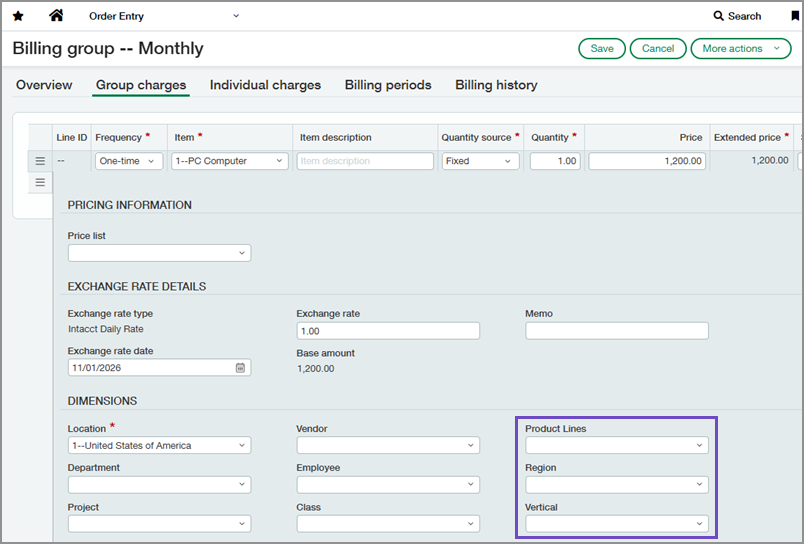
Assign user-defined dimensions on charges
Charges now support user-defined dimensions. When you assign user-defined dimensions, they carry through to generated OE sales invoices and journal entries. This helps maintain accounting accuracy and reporting consistency.
User-defined dimensions respect existing dimension permissions, visibility rules, and configuration settings.
How it works
Create a charge and expand Show details to assign user-defined dimensions.
| Subscription | Order Entry |
|---|---|
| Regional availability | All regions |
| User type | Business |
| Permissions | Billing groups: List, View, Edit |
Include inventory items on charges
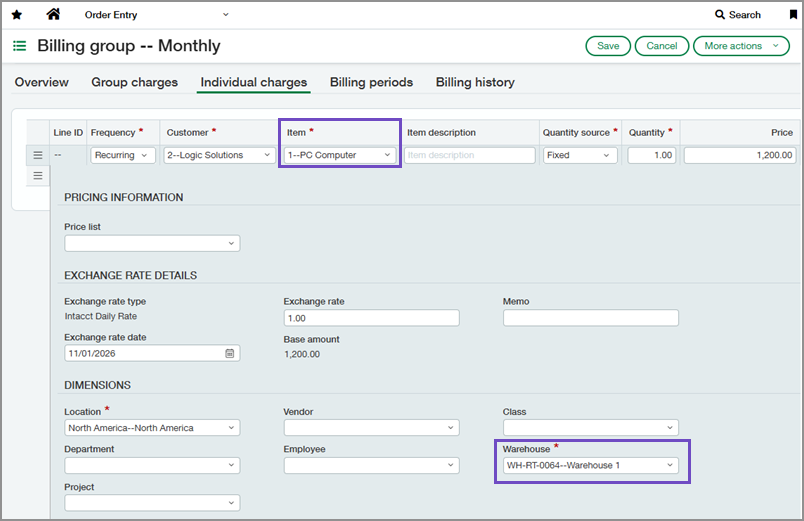
Charges now support inventory items in addition to non-inventory items. This allows you to automate recurring billing for physical products.
To support inventory item billing, charges now include a Warehouse field. For inventory items, a warehouse is required and it’s copied to generated OE sales invoice lines.
Billing groups automate invoice creation only. Generated invoices do not update on-hand inventory quantity or value. Continue to manage stock movements, fulfillment, valuation, costing, and COGS through your existing Inventory Control workflows.
How it works
Create a charge using an inventory item and assign a warehouse.
| Subscription | Order Entry Inventory Control |
|---|---|
| Regional availability | All regions |
| User type | Business |
| Permissions | Order Entry
|
| Dependencies or other requirements | In the transaction definition for the billing group, Inventory total must not include ONHAND. |
| Restrictions | Tiered price list entries are not supported for inventory items. |
View all billing group members
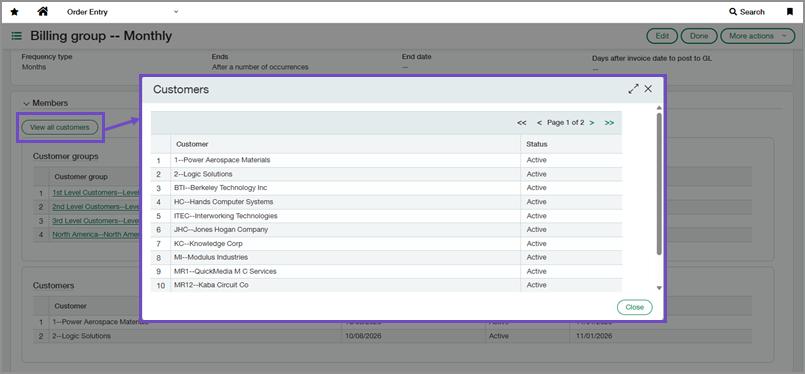
A new View all customers option lets you see a consolidated list of all members in a billing group from a single page. The list includes individually assigned customers and customers included through customer groups, along with each customer’s billing status. Each customer appears only once, even if included through multiple customer groups or both individually and through a customer group.
You can also now select a customer group to drill down and view its details.
These enhancements make it easier to review billing group membership and identify which customers are included in the billing group without navigating to multiple records.
How it works
When viewing a billing group, go to the Members section and select View all customers or select a customer group.
| Subscription | Order Entry Accounts Receivable |
|---|---|
| Regional availability | All regions |
| User type | Business Employee |
| Permissions | Order Entry
Accounts Receivable
|
