Cash Management
Enhancements to setting up cheque printing
Experience a simpler way to manage check printing settings for your company address and logo.
Your check printing setup is now simpler and more intuitive. With clearer options for addresses and logos, you can format checks the way you want without seeing unnecessary fields
Key benefits
The changes we made make it easier to set up the following cheque printing settings:
- Include an address that's different than the address in the Company information page.
- Upload a company logo to print on cheques.
What's changed
- The fields for entering a different company address on cheques are now only visible when you select the option to use a different address than the address on the Company information page.
- The controls for printing a logo have moved and are now next to the option for printing a company address on your cheques.
Learn more about setting up a current account to print cheques.
How it works
On the Cheque printing tab of the current account issuing the cheques, do the following:
-
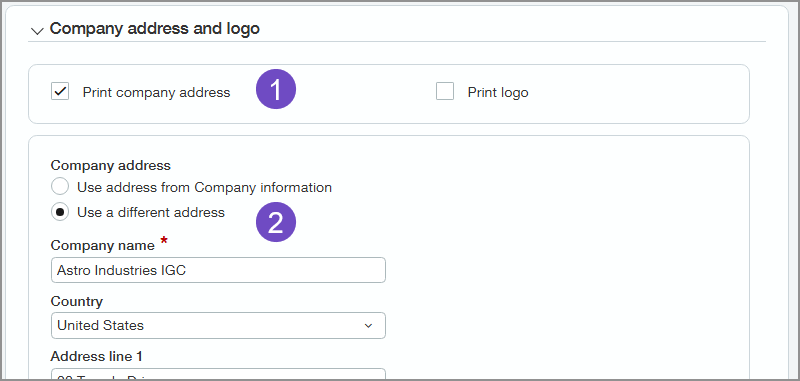
To print a company address on cheques, select Print company address.
When you select Print company address, the Company address section appears.
-
In the Company address section, select Use a different address.
When you select Use a different address, the address entry fields appear where you can enter the address details to add an address that's different than the address on the Company information page.
-
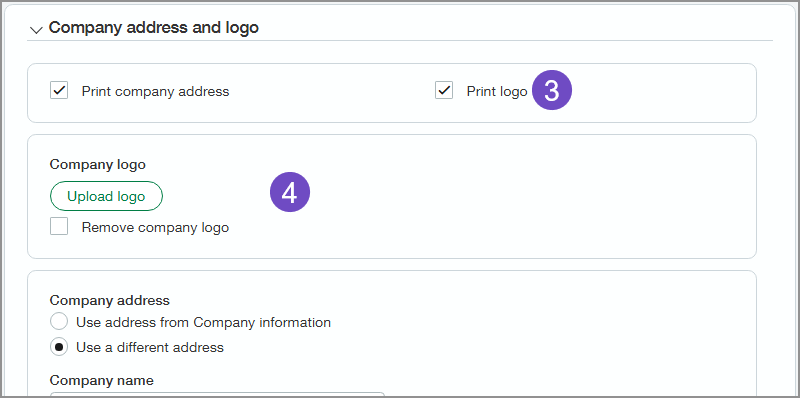
To print a logo, select Print logo.
The Company logo section appears.
-
Select Upload logo if a logo has not already been uploaded.
Learn more about uploading cheque logos and requirements.
Permissions and other requirements
| Subscription |
Cash Management |
|---|---|
| Regional availability |
All regions |
| User type |
Business |
| Permissions |
Current accounts: Add, Edit, List, View |
