Accounts Receivable
E-Invoicing for France—Early Adopter
Sage Intacct now supports E-Invoicing for France. This feature helps businesses to stay compliant with upcoming regulations while streamlining invoice processing.
Key benefits
French e‑invoicing is a regulatory reform that requires businesses established in France to issue, send, and receive invoices in a structured electronic format through approved platforms. From September 1, 2026, all companies must be able to receive electronic invoices, with issuance becoming mandatory from 2026 or 2027 depending on company size. The reform aims to standardize invoice data, improve VAT reporting, and increase transparency for tax authorities. For businesses, e‑invoicing delivers faster invoice processing, better cash flow visibility, reduced manual errors, and improved compliance through automation and real‑time tracking.
With this feature, you can do the following:
- Set up e-invoicing for your French entities.
- Send e-invoices from Accounts Receivable or Order Entry.
- Receive e-invoices in Accounts Payable, with or without AP Automation.
How it works
Before you can use E-Invoicing for France, you need to complete and submit all CA3 returns, and then install the update for the standard tax solution for France.
-
Go to Company > Admin > Subscriptions and subscribe to E-Invoicing.
-
Select Configure next to E-Invoicing.
-
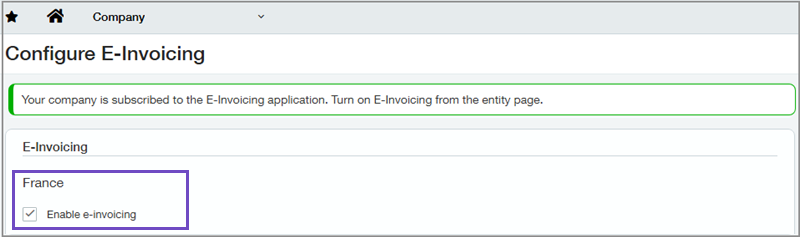
On the Configure E-Invoicing page, select Enable e-invoicing for France and save.
After a short delay, when you refresh the page a banner appears to confirm that the subscription is complete.
Entities must have a 9-digit SIREN number in the SIREN field.
-
Go to Company > Setup > Entities.
-
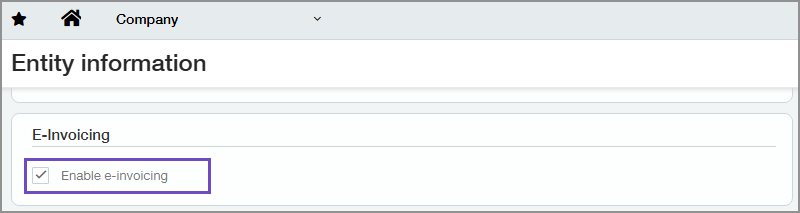
Open each of your French entities and in the E-Invoicing section, select Enable e-invoicing.
Intacct checks that the number in the SIREN field is a valid SIREN number. If the number is not a 9-digit number, a message appears advising you to enter a valid number.
When a valid SIREN number has been entered in the SIREN field, a validation page appears that displays the number, the company name, and the company address associated with that number.
-
If the information on the validation page is correct, select Confirm.
After you select Confirm on the validation page, additional fields become available. The SIREN number entered will be used when you send e-invoices.
-
Select the required service provider.
During the Early Adopter phase you can select Sage PDP France, which allows you to send actual e-invoices, or select Sage PDP France demo, which allows you to test how e-invoicing works without sending actual e-invoices.
-
Review the rest of the information displayed to confirm that it is as expected:
- The details of the company you want to register for e-invoicing.
- The PA that you are registering with.
- The date from which the mandate will be effective. The default is September 01, 2026, but during this Early Adopter stage you can enter the date that you want to start the pilot with the government.
- The e-invoicing address. This is identical to the SIREN number that was validated earlier.
The name of the person legally authorized to sign up appears at the end of the E-Invoicing section.
-
In section 7, enter the details of a company representative who has authority to sign on behalf of the company.
-
Select the I consent checkbox, and save the entity.
Initially, a banner appears at the top of the Entity information page confirming that the subscription is in progress. When the subscription becomes active, the banner at the top of the page confirms that the entity is subscribed to E-Invoicing and you can now start creating e-invoice transactions.
After e-invoicing has been enabled for an entity, it cannot be turned off.
- Go to Accounts Receivable > All > Customers.
- Find the customer you want to be able to use E-Invoicing and select Edit at the end of the row.
-
On the Additional information tab, in the Invoicing details section, confirm that the SIRET number that is already there is the correct number for the customer, or enter the correct number.
The SIRET number is a 14-digit number that starts with the SIREN number of a company followed by 5 digits that identifies the company's physical location or branch.
-
Enter the electronic address.
If the electronic address is unknown, enter the customer's SIREN or SIRET number.
- Switch to the French entity in which you want to create the e-invoice.
- Go to Accounts Receivable > All and select Add (circle) next to AR sales invoices.
-
In the Customer dropdown list, select the customer that the invoice is for.
-
Optionally, change the default contact in the Bill to field to a different contact.
The electronic address for the selected contact is displayed.
- Complete the rest of the invoice details as normal.
- In the E-Invoicing section, in the Invoice type dropdown list select E-Invoice.
-
In the Invoice mode dropdown list select the relevant invoice mode. The options in this dropdown list come from the government mandate.
-
Enter line items and tax details.
-
Select Calculate subtotals.
-
To save the invoice without posting, select Draft, or to post the invoice immediately, select Post.
After you post the transaction, it is sent to the PA and cannot be edited.
If you have Order Entry transactions definitions configured to post to Accounts Receivable, you can use those transaction definitions to create e-invoices from Order Entry.
- Switch to the French entity in which you want to create the e-invoice.
-
Do one of the following:
-
To create an OE sales invoice:
- Go to Order Entry > All > Transactions and select Add (circle) next to the required transaction type.
-
To convert a sales order to an OE sales invoice:
- Go to Order Entry > All > Transactions and select the required sales order.
- On the Order Entry transactions list, find the transaction you want to convert and select Convert > Sales AR sales invoice.
-
-
In the Customer dropdown list, select the customer that the invoice is for.
- Optionally, change the default contact in the Bill to field to a different contact. The electronic address for the selected contact is displayed.
- Complete the rest of the invoice details as normal.
- In the E-Invoicing section, in the Invoice type dropdown list select E-Invoice.
-
In the Invoice mode dropdown list select the relevant invoice mode. The options in this dropdown list come from the government mandate.
-
Enter line items and tax details.
-
To save the invoice without posting, select Draft, or to post the invoice immediately, select Post.
Posting the invoice sends it to the PA for processing.
As the e-invoice moves through the process, the status of the e-invoice is updated. You can view the status in an individual e-invoice or on the list of e-invoices.
-
Do one of the following:
-
Go to Accounts Receivable > All > AR sales invoices, or go to Accounts Payable > All > Automated transactions.
The status is shown in the E-invoice status column.
-
Go to Accounts Receivable > All > AR sales invoices, or go to Accounts Payable > All > Automated transactions, and open the AR sales invoice.
The status is shown in the E-invoice status field.
The e-invoice status isn't available in Order Entry.
-
-
If necessary, refresh the page to update the status.
Incoming e-invoices appear as draft transactions in the Automated transactions list.
- Go to Accounts Payable > All > Automated transactions.
- On the View menu, select Drafts.
-
Find the AP purchase invoice you want to review and select Edit at the end of the row.
- Review AP purchase invoice details and edit them as necessary.
-
You can accept, dispute or refuse the AP purchase invoice.
-
To accept the AP purchase invoice, do one of the following:
- Select Submit to submit it for approval if required.
- Select Post if it does not need to be approved.
-
To dispute the AP purchase invoice, select Dispute and enter the dispute reason and a memo.
-
To refuse the AP purchase invoice, select Refuse and enter a reason for the refusal and a memo.
-
If you’re subscribed to AP automation, Intacct populates additional fields that are generally not available in regular invoices, such as GL Account, Location, and Department.
Learn more about how AP Automation saves you time by automatically populating AP purchase invoices.
What's the Early Adopter program?
The Early Adopter program is available to a select group of customers who test new features and provide feedback. Your input will help us refine and improve these features before the general release.
If you want to be considered for the Early Adopter program, complete this form today.
Permissions and other requirements
| Subscription |
Accounts Payable Accounts Receivable Company E-Invoicing AP Automation (optional) |
|---|---|
| Regional availability |
France |
| User type |
Setting up E-Invoicing: Business user with admin privileges Sending and receiving e-invoices: Business |
| Permissions |
To set up e-invoicing
Administration
Company
To send e-invoices
Accounts Receivable
Order Entry
To receive e-invoices
Accounts Payable
|
| Restrictions |
|
