Accounts Receivable
Enhancements to embedded Customer Payment Services—Early Adopter
Accelerate cash flow by offering a self-service payment option to your customers with the new embedded Customer Payment Services feature. If you’ve subscribed to an inbound payment service provider, you can allow your customers to pay AR sales invoices electronically through a secure link in AR sales invoices that you email to them. This embedded payment experience is powered by Fortis and other payment providers, and is designed to streamline your receivables process.
Key benefits
This integration delivers several advantages for your accounts receivable team:
- Faster payments: Customers can pay multiple AR sales invoices directly from AR sales invoiceemails, helping you collect payments faster.
- Improved accuracy: Automated payment tracking and reconciliation reduce manual errors and administrative overhead.
- Enhanced visibility: Real-time payment status updates and audit trails provide better control and transparency.
- Customer and self-service convenience: A secure payment experience improves customer satisfaction and reduces friction.
- Easier setup: Default email templates are provided, but you can create different templates based on the defaults if you wish.
- More payment providers added: Customers can now use Bridge for companies in France and Germany to make electronic payments.
Easier setup for embedded Customer Payment Services
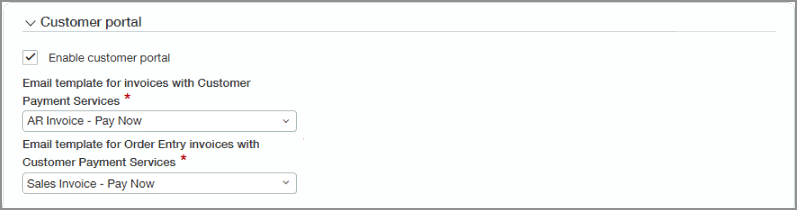
As soon as a subscription to a payment service provider becomes active, you can enable the customer portal on the Configure Accounts Receivable page.
When Enable customer portal is selected, Intacct automatically creates email templates to use when paying AR sales invoices sent from Accounts Receivable and Order Entry. These templates include tokens for payment link, AR sales invoice number, amount due, and due date. You can select the new templates on the Configure Accounts Receivable page in the Customer payments portal section.
If you want to create your own email template, you can copy a default template and edit the copy, then select the copy as the template to use when creating AR sales invoices.
Enable payment service provider selected by default on AR sales invoices
When you’re creating invoices, the Enable payment service checkbox in the Payment servicer section is selected by default. When the invoice is generated, the payment service is enabled for the invoice, provided the minimum and maximum requirements for payment services are met.
If required, you can turn off the Enable payment service setting on individual AR sales invoices, so that customer payment services are not available for that invoice.

Companies in Australia can now use embedded Customer Payment Services
We've added Australia to the list of available countries that you can select when configuring the Customer Payment Services subscription for your company.
When you select a country while configuring your company, only the payment providers available in that country are shown.
How it works
Set up Customer Payment Services
-
Subscribe to your preferred inbound payment service provider.
- Go to Company > Admin > Subscriptions.
- Scroll to Customer Payment Services and select View options.
- Select the country for your company.
- Find the payment service provider that you want to subscribe to and select Configure.
-
Set up your customer payment service account.
-
Turn on the customer portal.
The Pay Invoice Now link becomes available on AR sales invoices that you email to customers, and payment activity is tracked in the AR sales invoice and Payment history tabs.
Optional customizations
-
Turn off customer portals on the Configure Accounts Receivable page.
- Go to Accounts Receivable > Setup > Configuration.
- In the Customer portal section, clear the Enable customer portal checkbox.
-
Turn off the payment service for individual AR sales invoices.
- Go to Accounts Receivable > All > and select Add (circle) next to AR sales invoices.
- In the Payment servicer section, clear the Enable payment service checkbox.
-
Create your own email templates based on the default templates to match your company branding and messaging.
Use the payment service
- Create the customer AR sales invoice, ensuring that Enable payment service is selected.
-
On the Print or email documents page, ensure that the required email template is selected, then send the AR sales invoice to your customer.
When your customer receives the AR sales invoice, they select the link in the email. They’re then redirected to the customer portal, where they can view their AR sales invoice. They can also see any other outstanding AR sales invoices, which they can select to pay at the same time if they wish. When they confirm which AR sales invoices to pay, they are taken to the payment provider's secure payment page, where they submit their payment.
When AR sales invoices are paid using the link, the payments automatically appear in the Posted payments list.
What's the Early Adopter program?
The Early Adopter program is available to a select group of customers who test new features and provide feedback. Your input will help us refine and improve these features before the general release.
If you want to be considered for the Early Adopter program, complete this form today.
Permissions and other requirements
| Subscription |
Accounts Receivable Customer Payment Services |
|---|---|
| Regional availability |
|
| User type |
Business user with admin privileges |
| Permissions |
Accounts Receivable
Administration (for setup)
|
