Change management basics
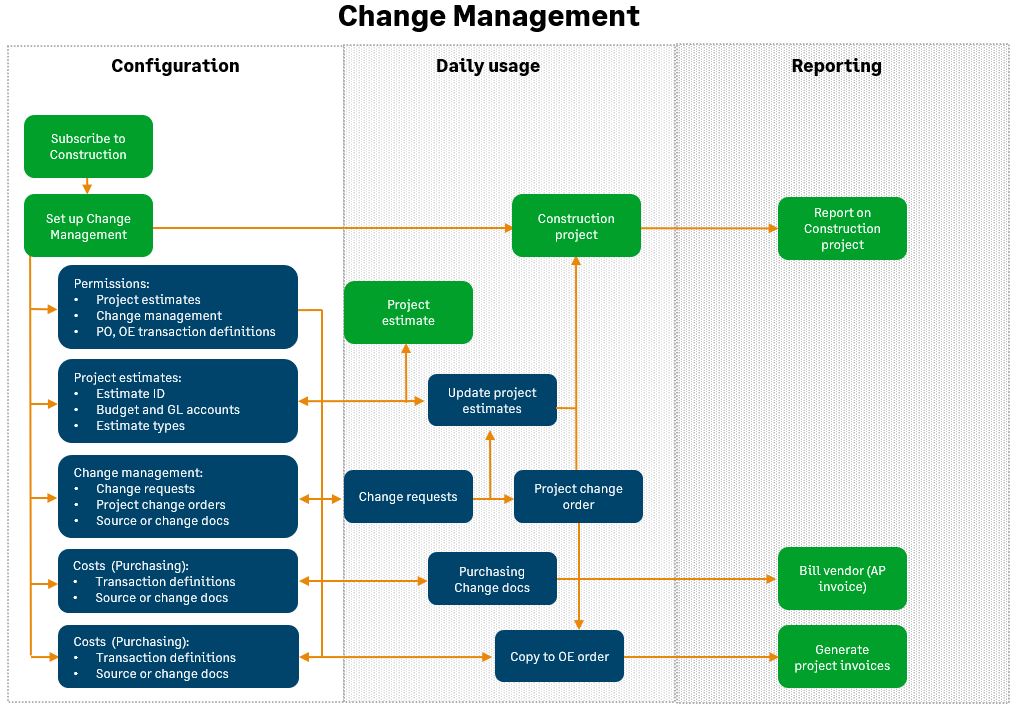
Change management allows you to capture and record planned and unexpected project changes and to track how those changes affect and revise project estimates and billing totals throughout the project's life cycle.
Videos
Training
Sage University provides training that you can take at your own pace. The courses are designed to help new users get started with Sage Intacct quickly.
Connect with Sage University then select a training link.

Change management
Learn how Sage Intacct Construction change management tools help you capture project changes as they happen.

See all on-demand training
Get up to speed quickly with short video tutorials and interactive training modules.
Understand change management basics
Planned and unexpected changes can occur throughout your project's life cycle, impacting your original estimates, costs, and agreements with subcontractors, vendors, and customers.
Workflow
Use change requests to revise original amounts in a primary project estimate. When you add a change request, select a change request status to control what happens when you post that change request to your primary project estimate.
| Subscription |
|
|---|---|
| User type |
Business user with admin privileges Construction Manager Project Manager |
| Permissions |
Projects, Change Request
|
| Previous step |
-
Go to Projects > All > Change management > Change requests.
- Select Add to create a change request.
-
Enter a change request ID.
If you configured Projects to use an automatic ID sequence for change requests, the ID appears automatically. Otherwise, you can enter the ID manually. - Associate the change request with the corresponding project to populate the project information section. You can select a sub-level project from the same project hierarchy.
- Enter the change request date, which is used as the estimate entry effective date if posted to a GL budget.
- Enter a description of the change request.
-
Select the change request status. Entry lines default to the workflow type mapped to this change request status.
Leaving the status blank or selecting a status mapped to the None workflow type won't revise (change) any project estimate amounts. - For reporting purposes, select change request types (optional).
- If applicable, select an attachment.
-
You can link this change request with a project change order associated with the project ID.
Only posted change requests can be linked to a project change order. When linked to a project change order, the posted change request inherits the change request status of the project change order. If the project change order doesn't have a change request status set, the linked change request inherits a None status, which can affect GL posting from the project estimate, depending on your workflow. - In the Entries section, enter your changes.
- Select Draft to save the changes.
- When you’re done with the change request, you can Post the change request to a primary project estimate. The project estimate reflects posted change requests.
-
Go to Projects > All > Change management > Change requests.
- Select +Create to create a change request.
-
Enter a change request ID.
If you configured Projects to use an automatic ID sequence for change requests, the ID appears automatically. Otherwise, you can enter the ID manually. - Associate the change request with the corresponding project to populate the project information section. You can select a sub-level project from the same project hierarchy.
- Enter the change request date, which is used as the estimate entry effective date if posted to a GL budget.
- Enter a description of the change request.
-
Select the change request status. Entry lines default to the workflow type mapped to this change request status.
Leaving the status blank or selecting a status mapped to the None workflow type won't revise (change) any project estimate amounts. - For reporting purposes, select change request types (optional).
- If applicable, select an attachment.
-
You can link this change request with a project change order associated with the project ID.
Only posted change requests can be linked to a project change order. When linked to a project change order, the posted change request inherits the change request status of the project change order. If the project change order doesn't have a change request status set, the linked change request inherits a None status, which can affect GL posting from the project estimate, depending on your workflow. - In the Entries section, enter your changes.
- Select Draft to save the changes.
- When you’re done with the change request, you can Post the change request to a primary project estimate. The project estimate reflects posted change requests.
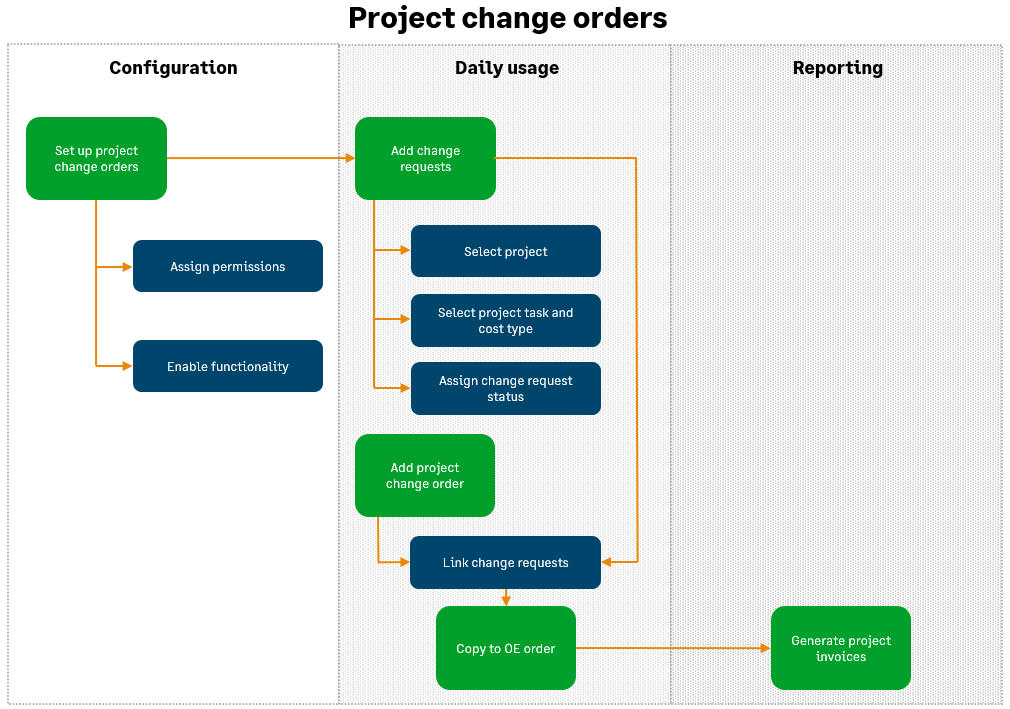
A project change order summarizes the total price and costs of multiple change requests, simplifying the billing process for multiple change requests for a single project. Once added to a project change order, change request details become read-only. Project change orders simplify and streamline your ability to monitor project changes and bill customers.
Workflow
| Subscription |
Projects enabled for Project costing and billing Construction |
|---|---|
| User type |
Business user with admin privileges Construction Manager Project Manager |
| Regional availability |
|
| Permissions |
Projects Project change order: List, Add |
| Previous step | Add a change request—Construction |
- Go to Projects > All > Change management and select Add (circle) next to Project change orders.
-
Enter a Project change order ID.
If you configured Projects to use an automatic ID sequence for project change orders, the ID appears after you save the project change order.
- Associate the project change order with the corresponding Project.
- Enter the Project change order date.
- Enter a Description of the project change order.
- Select the Change request status. Change requests linked to this project change order inherit whatever change request status you select here.
- Select a non-inventory or non-inventory (Sales only) Billing item.
A billing item is required to copy a project change order to an OE order.
- Select a Send-to contact.
If a ship to contact exists for the project, that contact appears in this field automatically. - Optionally, add more information about the project in the Additional information section.
-
Select Post.
Link multiple change requests to the project they change. After, the project change order summarizes the total price and costs for those change requests.
Only posted change requests can be linked to a project change order. After, change request details become read-only and inherit their change request status from the project change order. Removing a change request from a project change order does not reset the status.
Before you can add change requests, either save the project change order as draft or post the change order. You can post a project change order before adding change requests.
| Subscription |
Projects application enabled for Project costing and billing Construction |
|---|---|
| User type |
Business user with admin privileges Construction Manager Project Manager |
| Permissions |
Projects
|
-
Go to Projects > All > Change management > Project change orders.
- Find and open the project change order in Edit mode.
- Ensure that the billing item for the project change order is either a non-inventory or non-inventory (sales only) item with a base unit of each or one (1).
-
In the Change requests section, select the change requests that you want to link to this project change order.
Change requests must have the same project or subproject as the project on the change order.
- Select Draft to save the changes.
-
When you’re done with the project change order, select Post.
| Subscription |
Projects enabled for Project costing and billing Construction |
|---|---|
| User type |
Business user with admin privileges Construction Manager Project Manager |
| Regional availability |
|
| Permissions |
Projects Project change order: List, Add, View |
-
Go to Projects > All > Change management and select Add (circle) next to Project change orders.
- Group change requests by project—Construction
-
Select Post.
-
Go to Projects > All > Change management > Project change orders.
-
Find the project change order to copy.
-
Select More actions > View at the end of the row.
-
Go to More Actions > Copy to to copy the project change order to an Order Entry (OE) transaction definition with an order type.
Copying to an order type gives you the flexibility to copy the project change order to a sales order or to a Construction source or change document with an order type. Copying creates a new line only.
-
The Construction source document or change document opens.
If you enabled the Internal reference section on the transaction definitions, the Internal source field reflects the project change order number.
The Entries section contains a single line with the total amount from your project change order.
-
Select Post.
-
Go to Projects > All > Change management and select Add (circle) next to Project change orders.
- Group change requests by project—Construction
-
Select Post.
-
Go to Projects > All > Change management > Project change orders.
-
Find the project change order to copy.
- Select View.
-
Go to More Actions > Copy to to copy the project change order to an Order Entry (OE) transaction definition with an order type.
Copying to an order type gives you the flexibility to copy the project change order to a sales order or to a Construction source or change document with an order type. Copying creates a new line only.
-
The Construction source document or change document opens.
If you enabled the Internal reference section on the transaction definitions, the Internal source field reflects the project change order number.
The Entries section contains a single line with the total amount from your project change order.
-
Select Post.
The OE order document now includes a single price-conversion line with a billing item and total price for the change requests in the project change order. The line is preset to use the price conversion type.
