See when books were closed
Related information
 Related topics
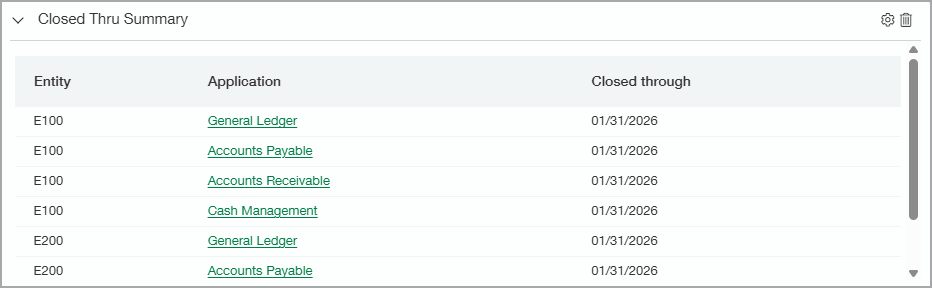
There's a helpful way to see what books have been closed and when and who closed them. The Closed through summary is available if someone with the right permissions added it to a dashboard.
| Subscription |
Company |
|---|---|
| Regional availability |
All regions |
| User type | Business |
| Permissions |
Company
General Ledger
Other applications
|
| Restrictions | If a user is restricted to particular entities, they cannot view close-through information for other entities. |
Closed through summary
The Closed Through Summary shows the closed-through date and other information for each application area. The following applications are included, but the user can see them only if they have the correct permissions to do so.
- Accounts Payable
- Accounts Receivable
- Cash Management
- Expenses
- General Ledger
- Time
You can set up the component to show a summary of the close status for all entities or list individual entities. Users can select the application name to drill down to that application’s Close page.
Add the Closed Through Summary to a dashboard
-
Go Dashboards > All and select the dashboard.
Or to create a new dashboard, select Add (circle) next to Dashboards.
- On the dashboard, select Add to add a new component.
- In the Component type field, select General.
- In the Component field, select Closed through summary.
-
Select either Summary view or Entity view.
If you're viewing the dashboard from the entity view, you'll see only the information for that entity. At the top level, you'll see all entities listed if you select Entity view.
- Select Save.
What you see on the dashboard
When you add the Closed through summary, you’ll be able to see an area on the dashboard with the closed-through dates. If the book has never been closed, you’ll see No close performed.