About standard application reports
Related information
 Related topics
There are many different types of reports, each with its own value. If your company was created with a QuickStart setup template, certain financial and other application reports are included.
Each application has reports relating to its particular functions. You can create customized reports based on the application reports that are fine-tuned for your company.
You can access reports in the following ways:
- Most applications include a Reports menu with a list of common reports for that type of application.
- For centralized, highly effective report management, you can access all reports from a single location in the Reports center.
Sage Intacct offers several report types: application, financial, and Custom Report Writer (CRW), Interactive Custom Report Writer (ICRW), and Interactive Visual Explorer (IVE).
- Application reports: Standard reports provided with the applications that can be run out-of-the-box with minimal information needed.
- Financial reports: Standard and customized created using the Financial Report Writer. Predominantly primary financial reports, such as Profit /Loss, balance sheet details, and cash balances.
- Custom Report Writer (CRW) reports: Custom reports created with the use of a Wizard. There are no out-of-the-box custom reports. The CRW Wizard (CRWZ) takes you through creating a custom report in a step-by-step process.
- Interactive Custom Report Writer (ICRW): A separate subscription for reports that allow transactional data to be easily explored and interpreted. You can filter and pivot the information to explore details further and still maintain the overall picture. For more information, see the ICRW learning journey.
- Interactive Visual Explorer (IVE): A separate subscription for visual reports and analytics that explore data with various visualization types. You can explore data from different perspectives to find correlations, discover patterns, and inspect trends. For more information, see the IVE learning journey.
For more information on custom reports, see the custom reports overview.
| Subscription |
General Ledger Others as required by application-specific reports |
|---|---|
| Regional availability |
All regions |
| User type | Business, Employee |
| Permissions |
Reports: List, View, Run |
Select a report
There are a couple of ways to select reports. However, you must have the proper permissions to view the data in a report.
Your permissions might differ based on the reports you want to access. To understand how your company, application, and subscription permissions interact to affect what you can see and do with reports, see Reporting permission basics.
Application menu
You can select a report from an application menu in the following way.
-
Go to the application whose report you want to select, such as Inventory Control.
- Select All > Reports.
-
Select a report from the list in one of the following ways:
- Select the report name to run the report
- Select Edit to open and modify the report.
- Specify parameters for the report on the Report settings page.
Reports center
The Reports center provides access to all types of reports. You can easily access Reports Center reports in a few simple steps.
- Select Reports on the Action menu to open the Reports center.
- Select the link for the application with the report that you want to access.
-
Do one of the following:
- Select the report name to run the report.
- Select Edit to open and modify the report.
- Specify parameters for the report on the Report settings page.
Report settings page
The parameters you specify for a report determine the content and format. Most report settings pages include the following sections:
- Time Period
- Filters
- Format
- Titles
For an example of the settings for a General Ledger (GL) report, see Example Report settings page.
Modify report settings
You can specify report settings in a few simple steps.
- Make the desired selections for each section.
- Select View to display the report with the specified data.
- To modify your settings, select Customize to return to the Report Settings page.
- Select Memorize to save your report settings. You can run the report later, if desired.
Most report settings are saved automatically. This means that you do not have to customize and save the report each time you want to run it. When you run the report again, your last choices are displayed.
Time period and settings specified with prompts, such as location and department, are not saved with a report.
Example Report settings page
The following is an example of a General Ledger (GL) Report settings page.
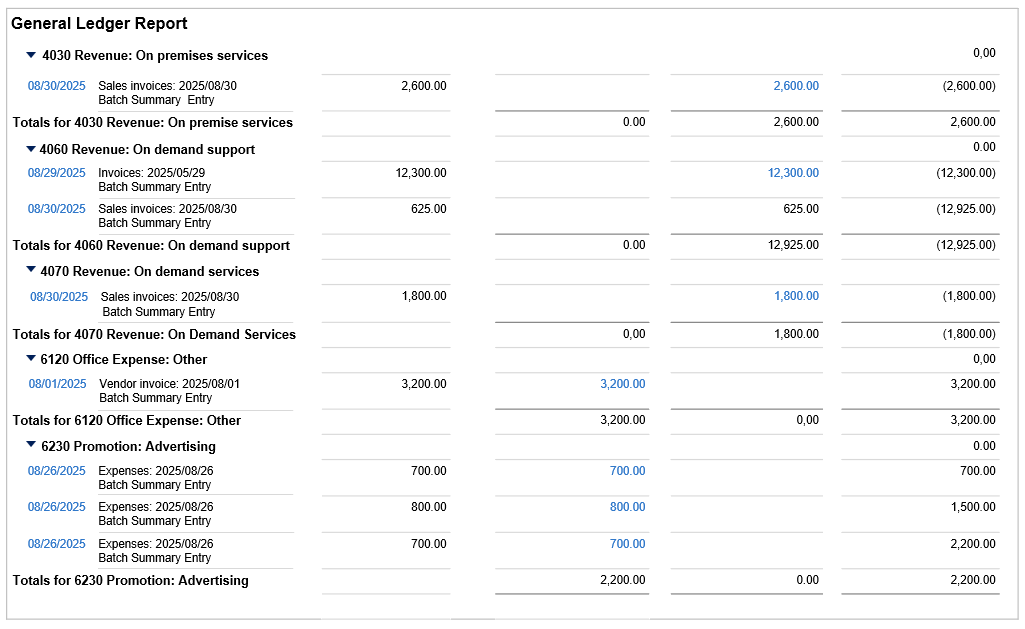
You can select any link to drill down to the details.
Report options and output formats
To view, process, memorize, export, or customize the report or add it to the dashboard, select one of the following options:
- View: View the report now, in your browser.
- Print: Display the report now, in printable PDF format.
- Process & store: Generate the report and store it for later access. Reports can be either stored in the My Stored Reports list or delivered to a cloud storage location, such as Dropbox. Learn more about processing and storing reports.
- Add to dashboard: Add the report to your dashboard.
-
Memorize: Memorize (that is, save) the report so that later you can refer back to it or modify and re-run it.
You can schedule memorized reports to run on a recurring basis. Intacct can automatically email the reports or deliver them to a cloud storage location.
- Export: Export the report to a separate file that you can then distribute or save to your local drive. File formats to which you can export the report data vary among reports.
- Customize: After you run the report, return to the main report page and refine the report further.
- Email: After you run the report, email to others.
Some options are only available if you access the report from the Reports center.
Report capabilities
The following table summarizes your capabilities when using application and financial reports. Custom reports provide a broader range of capabilities. For more information, see Advanced reports.
| What you can do | What you can’t do |
|---|---|
|
|
Run reports offline (store reports)
For a long report that takes considerable time to run, you can select Process & Store. This option runs the report in the background and you continue with other tasks. The report is automatically added to the My Stored Reports list when it's done.
You can choose to be notified by email when the offline report has been processed. To do so, select the Receive Email Notification For Offline Reports checkbox in the My Preferences page.
