Mark a report as a favorite
Related information
 Related topics
Reports center allows you to add any report to a list of favorite reports. After you flag a report as a favorite, you can access it immediately from the Favorites tab in left navigation panel.
| Subscription |
Company |
|---|---|
| Regional availability |
All regions |
| User type |
Business with admin privileges Business Employee |
| Permissions |
Admin: Run, List, View, Add, Edit, Delete Business: Run, List, View, Add, Edit Employee: List, View |
| Prerequisites |
You must have permission to view the information in a report. Access to list, view, and edit reports can vary depending on your organization's subscriptions and your permissions. |
Add a report to My Favorites list
- Go to Reports > All > Reports center.
- Find the report you want to flag as a favorite.You can filter the list by application or use Search to find the desired report. For more information, see Report center basics.
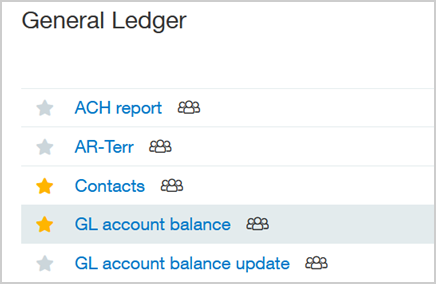
- Select the favorite (star) icon
 beside the report name.
The star changes from gray to orange to indicate that this is now a favorite report.
Remove a report from a favorites list
- Go to Reports > All > Reports center.
- Locate the report you want to remove from your favorite list.
- Select the orange star beside the report name.
The icon changes to gray. The report no longer appears when you use the Favorites filter, and the star turns gray on Reports center pages.
