company and Administration
Sage Intacct import service AI powered tools
The Sage Intacct import service provides a structured, user-friendly workflow for importing data into Intacct.
The import service now has AI tools to transform your data in the import service workspace, and enhanced mapping to make your imports easier.
Key benefits
-
Saves time: No more manual data tweaks. Describe the changes that you want to see and let the AI agent to do the heavy lifting.
-
Ensures accuracy: Preview and rollback features help ensure that your data is correct before it’s imported into Intacct.
-
Boosts productivity: Easily handle complex mapping scenarios, like splitting a full name into first, middle, and last names, or combining columns to create new values.
How it works: AI-powered enhanced mapping
Enhanced mapping allows you to split or join fields, map one source field to multiple destinations, and even generate new values (like creating email addresses from names).
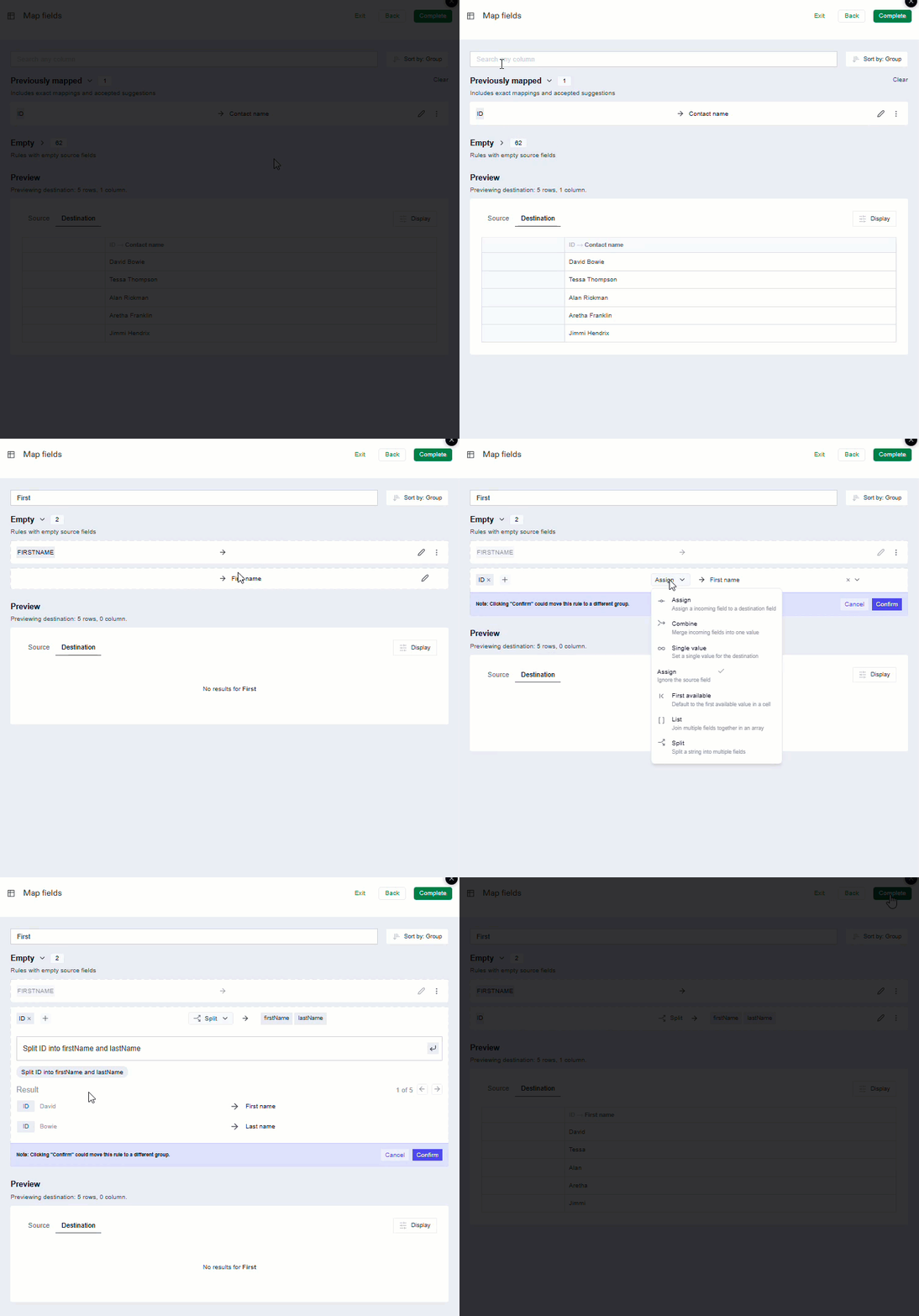
For example, let's suppose that you're importing new Contacts but all you have are first and last names as the contact ID. With this information, you can populate the Contact name, First name, and Last name fields by using the enhanced mapping.
-
Go to Company > Setup > Import data > New import service.
-
Open the Company > Contacts > Create area of the import workspace.
-
Load your contact spreadsheet to the import service workspace.
-
On the mapping page, the source field ID is mapped automatically to the destination field Contact Name.
-
Use the search bar to find the destination field First name and select Edit Edit.
Source fields are listed on the left side of the column in all capital letters; destination fields are listed on the right side of the column in sentence case.-
Select Edit and assign ID to the source field.
-
Select Split from the actions menu.
The import agent suggests an action, in this case: Split ID into firstName and lastName.
-
Select Split ID into firstName and lastName.
Review the Results section to verify the split results match your expectations.
-
Select Confirm to map the ID field to the First and Last name fields.
-
-
When you’re finished mapping fields, select Complete.
Your records are loaded into the import service workspace for review.
How it works: AI-powered Transform
Use natural language with the AI-powered Transform agent to change or update your data before you import it into Intacct.
AI Transform streamlines data cleanup during import. Tell it what you need done, such as removing prefixes or splitting field, and it updates the data for you. You’ll get a preview of the changes before they’re applied.
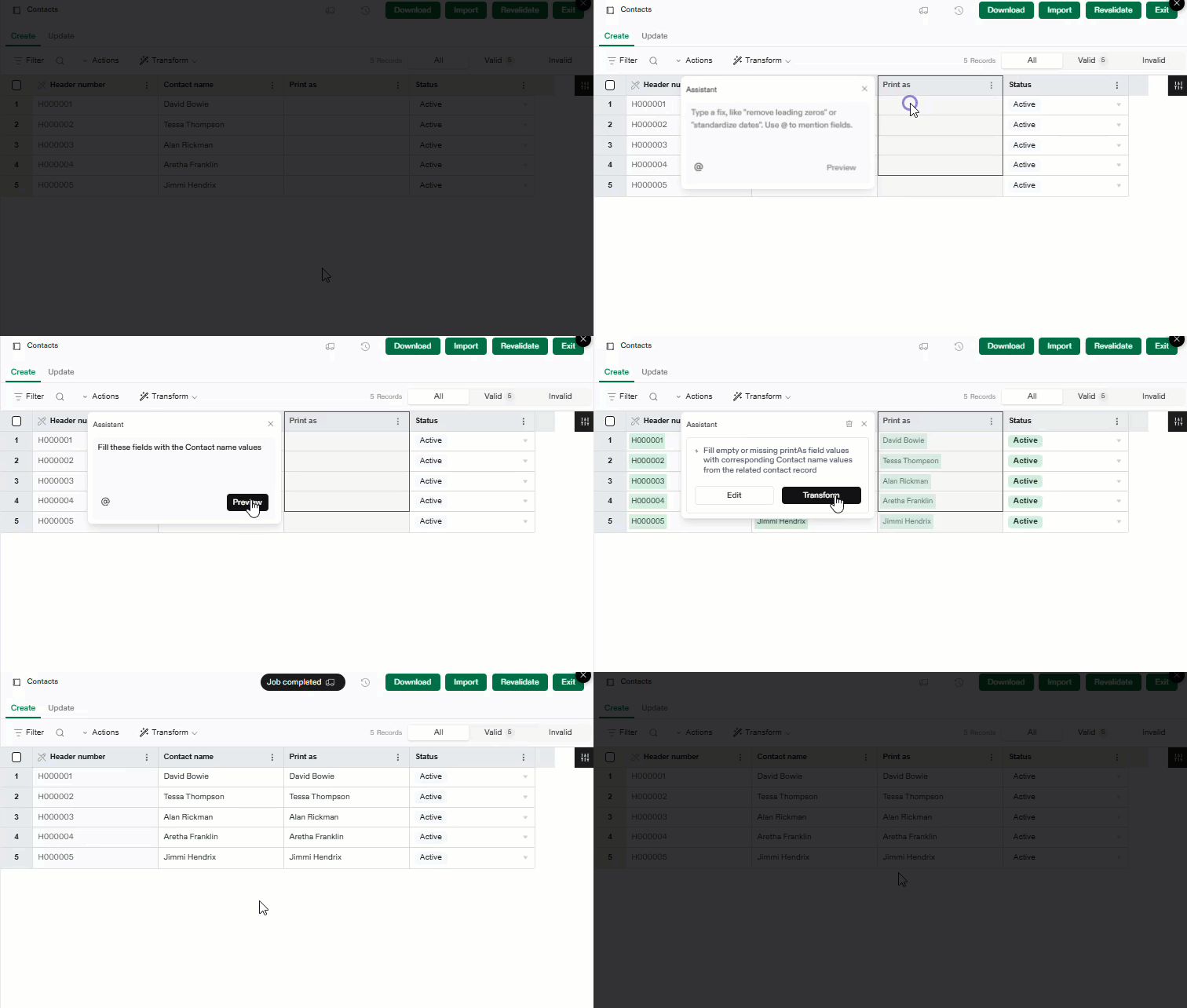
In this example, after loading Contact data, you notice that the Print as field is blank. Use Transform to automatically fill it in.
-
On the Contact worksheet, select the Print as column menu and select Transform.
-
In the Assistant window, enter your request and select Preview.
For example, you could enter: Fill these fields with the Contact ID values.
-
The Assistant displays an interpretation of your request, and creates a preview of the changes.
In this case, the Print as column is populated with the existing Contact ID values.
-
If the suggested changes are acceptable, select Transform.
You can also select Edit to refine your request.
New and updated imports
The following imports are either newly added to the import service or have had their status updated. For example, an updated status could mean moving from Early Adopter to General Availability.
View all available imports at About the import service.
Accounts Payable
| Import | Create | Update | Status |
|---|---|---|---|
| Vendor | Yes | Yes | NEW: Early Adopter |
Accounts Receivable
| Import | Create | Update | Status |
|---|---|---|---|
| Customers | Yes | Yes | NEW: Early Adopter |
| Invoices | Yes | Yes | NEW: Beta |
Cash Management
| Import | Create | Update | Status |
|---|---|---|---|
| Savings Accounts | Yes | Yes | NEW: Beta |
Company
| Import | Create | Update | Status |
|---|---|---|---|
| Contacts | Yes | Yes | NEW: General availability |
| Entities | Yes | Yes | NEW: General availability |
Contracts
| Import | Create | Update | Status |
|---|---|---|---|
| Contracts | Yes | Yes | NEW: Beta |
| Contract lines | Yes | Yes | NEW: Beta |
General Ledger
| Import | Create | Update | Status |
|---|---|---|---|
| General Ledger journal entries | Yes | No | NEW: General availability |
Projects
| Import | Create | Update | Status |
|---|---|---|---|
| Employees | Yes | Yes | NEW: Beta |
| Projects | Yes | Yes | NEW: Beta |
| Tasks | Yes | Yes | NEW: Beta |
Join the Beta program
We invite you to explore the new capabilities of our imports in Beta.
Your insights are incredibly valuable. By signing up via the form linked below, you'll not only get early access but also have the opportunity to shape the future of this feature. After you try it out, we'd love to hear your feedback.
Permissions and other requirements
| Subscription | Company |
|---|---|
| Regional availability |
All regions |
| User type |
Business |
| Permissions |
Company Setup Checklist: Run You’ll also need permission to access the specific applications of Sage Intacct where you want to import data. |
