construction
Introducing Work Order Management and the work order dimension
Manage service-related work orders at scale with the new Work Order Management application and work order dimension.
Key benefits
-
Streamline your workflow: Track service work orders in a dedicated application built to handle a high volume of shorter-duration jobs.
-
Enhance efficiency: Reference specific work orders on transactions within Sage Intacct.
-
Optimize system performance: Separate small-scale work orders from complex construction projects.
-
Easily sync: Synchronize work order information with your integrated field service operations solution.
How it works
Enable work orders
To enable Work Order Management and the new work order dimension, complete the following steps:
-
Your system administrator must subscribe to and configure the new Work Order Management application: Company > Admin > Subscriptions > Applications.
-
Enable the Work order dimension in General Ledger: General Ledger > Setup > Configuration.
-
Enable the Work order dimension in the applications where you want to track work order transactions, such as Projects, Accounts Payable, or Time: [Application name] > Setup > Configuration.
Configure Work Order Management
Set up the basics for your Sage Intacct work orders. Go to Work Order Management > Setup > Configuration and select options for the following fields:
-
Work order ID sequence: Determines how to number new work orders.
-
Enable work order fields: External reference fields to track on work orders, such as Service site and Amount billed.
Customize service-related attributes
Set up work order types, call types, problem codes, and work order states specific to your business. Go to Work Order Management > Setup and select the work order object to customize:
-
Work order types: The main category for the service request. For example, Service or Small Job.
-
Work order call types: A subcategory for a service request. For example, Preventative Maintenance or Warranty.
-
Work order problem codes: A subcategory that describes the source of the service issue. For example, Parts or Electrical.
-
Work order states: Identifies the current status of the work associated with a service request. For example, In progress, Completed, or On hold.
Create a work order
Create work orders at the top level or for a specific entity.
-
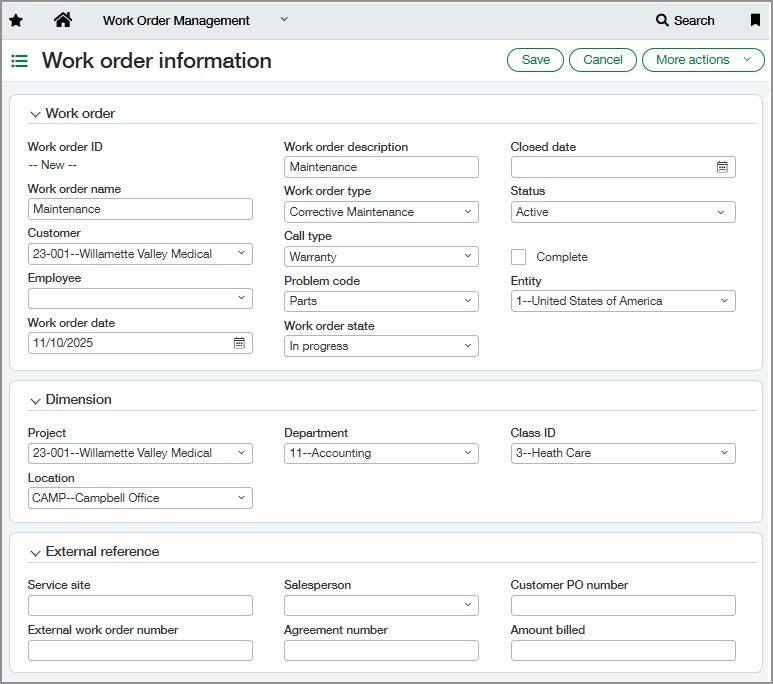
Go to Work Order Management > All > Work orders.
-
Select Add.
-
Complete the fields shown.
-
Select Save.
Track work order transactions
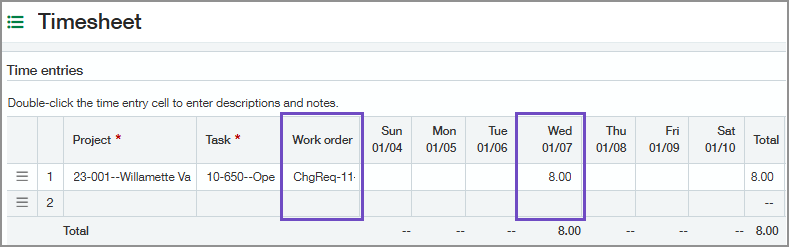
Users can track work order transactions in the applications where you've enabled the work order dimension. For example, if you enable the work order dimension in Time, employees can track hours against a work order directly from their timesheets.
Good to know
-
Posting transactions: When transactions with work order dimensions are posted, work order values are carried through the workflow like any standard dimension.
-
Administration: Users with the appropriate permissions can create customers, employees, and custom views within the Work Order Management application.
-
Reports: The work order dimension is available only in Custom Report Writer. It is not supported in Financial Report Writer, standard General Ledger reports, or Dimension groups and Dimension structures in Reports.
Permissions and other requirements
| Subscription |
Construction Work Order Management If you subscribe to Construction, the Work Order Management subscription is available by default. To enable Work Order Management without a Construction subscription, contact your Sage Intacct account manager.
|
|---|---|
| Regional availability |
|
| User type |
Business Construction Manager Employee Project Manager |
| Permissions |
Work Order Management
|
| Configuration |
To use Work Order Management and the work order dimension, you must complete the following setup:
|
