Fixed Assets Management
Change asset cost using AP adjustments
You can now increase or decrease an asset's cost directly from an AP adjustment. This update makes it easy to correct costs when asset values change due to capital improvements, revaluation, or earlier acquisition errors.
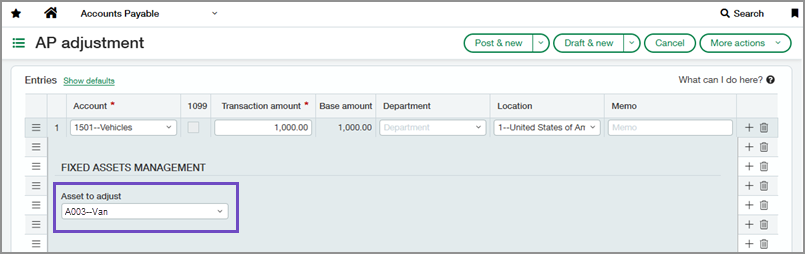
Previously, cost changes were only possible when an asset was in the Ready for review state, requiring users to reverse postings and states, or rely on manual workarounds in the General Ledger. Now, you can simply create an AP adjustment. When the adjustment is posted, the asset's future depreciation is automatically recalculated to reflect the updated cost and ensure accurate financial reporting.
Key benefits
-
Increase accuracy: Easily correct asset cost discrepancies, without manual workarounds.
-
Streamline updates: Asset cost changes flow directly from AP adjustments, reducing the chance of errors.
-
Recalculate depreciation: Fixed Assets Management automatically updates future unposted depreciation to reflect the new cost.
-
Improve visibility: View clear before‑and‑after asset cost changes for every adjustment.
What's changed
We added an Asset to adjust field at the line level on AP adjustments, so you can specify which asset's cost to update. We also introduced a new Cost adjustments tab on asset records, making it easy to track all adjustments affecting an asset.
Good to know
-
To adjust an asset's cost, the asset must be in the In-service or Ready for Review state.
-
A debit memo decreases asset cost and a credit memo increases it.
-
The Amount or Base amount on an adjustment line indicates how much the asset's cost will change.
-
Not posted depreciation schedule entries are automatically recalculated based on the updated cost. Posted entries remain the same.
How it works
-
Go to Accounts Payable > All > Payments and select Add (circle) next to Adjustments.
-
For multi-currency companies, select a Base currency that matches the asset's base currency.
-
In the Entries section, select an Account for one of the lines.
This account must be assigned as the Asset GL account on the asset that you want to adjust.
-
Select Show details to expand the line.
-
Select an Asset to adjust.
-
Enter any remaining required fields.
-
Select Post.
After posting, you can view the cost change on the asset’s Cost adjustments tab.
Permissions and other requirements
| Subscription |
Fixed Assets Management Accounts Payable |
|---|---|
| Regional availability | All regions |
| User type |
Business |
| Permissions |
Fixed Assets Management
Accounts Payable
|
| Configuration |
The account you select at the adjustment line level must be assigned as an Asset GL account on the asset that you want to adjust. |
| CSV import |
The Asset to adjust field is now available in the AP adjustments import template as the ADJUSTMENT_ASSET_ID column. |
