Fixed Assets Management
Manage Construction in Progress (CIP) assets
Fixed Assets Management now supports end‑to‑end Construction in Progress (CIP) asset acquisition, tracking, and capitalization.
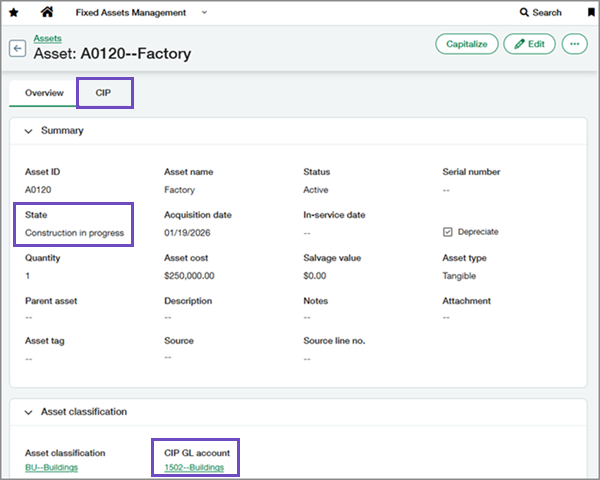
With this enhancement, you can manage long‑term capital projects, such as buildings, infrastructure, or custom equipment, directly in Intacct. Bills and invoices coded to CIP GL accounts can automatically create CIP assets and track spend, reducing manual effort, improving accuracy, and accelerating capitalization workflows.
Key benefits
-
Manage full asset lifecycle: Track capital projects from inception through capitalization in a single system.
-
Improve financial accuracy: Ensure in‑progress assets are accurately reflected on the balance sheet.
-
Increase operational efficiency: Eliminate spreadsheets, reduce manual data entry, and speed up month‑end close.
-
Enhance visibility: Get real‑time insight into project spend, progress, and readiness for capitalization.
How it works
-
Turn on CIP functionality
Go to Fixed Assets Management Configuration and select Enable CIP. CIP‑related fields and actions become available.
-
Assign CIP GL accounts
Add a CIP GL account to relevant asset classifications. You can use the same CIP GL account across multiple classifications. You can also override this account on individual assets if needed.
-
Create CIP assets
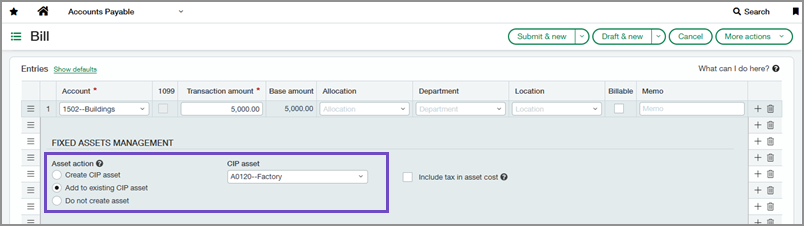
Create CIP assets automatically from bills or purchasing transactions by selecting Create CIP asset at the line level. You can also create CIP assets manually in Fixed Assets Management or through the Import service.
-
Add costs
When you enter additional bills or purchasing transactions, select Add to existing CIP asset at the line level and specify the asset to apply the costs to. Costs are recorded on the asset's CIP tab.
-
Capitalize the asset
When you're done adding costs, select Capitalize on the asset. Costs move from the CIP GL account to the Asset GL account and the asset moves to the Ready for review state. A link to the capitalization journal entry is recorded on the asset's CIP tab.
-
Place the asset in service
Place the asset in service to begin depreciation.
Good to know
-
Bill and purchasing actions: The actions Create CIP asset and Add to existing CIP asset automatically appear on bill and purchasing transaction lines that use a CIP GL account.
-
Projects integration: If you subscribe to Projects, you can associate a project with a CIP asset. When you select a project dimension on a bill or purchasing transaction line, the related CIP asset defaults automatically.
-
CIP state and checkbox: CIP assets start in the Construction in progress state, where you can continue adding costs. They also include a checkbox that identifies the asset as CIP for reporting, even after it moves out of the CIP state.
Permissions and other requirements
| Subscription |
Fixed Assets Management Administration Accounts Payable Purchasing Projects |
|---|---|
| Regional availability |
All regions |
| User type |
Business user with admin privileges Business |
| Permissions |
Fixed Assets Management
Administration
Accounts Payable
Purchasing
Projects
|
| Configuration |
|
| Import service |
|
| Restrictions |
|
