PROJECTS AND GRANTS
Manage Projects
The new Manage Projects feature allows you to filter projects and update multiple project fields across projects simultaneously with efficiency and ease.
What's new
Manage Projects allows you to update any number of records across your projects in one simple procedure. With this new feature, you can:
- Filter projects by criteria, such as status or date.
- Select multiple projects and apply bulk edits intuitively using an interactive interface.
- Execute updates as offline jobs with detailed logs for completion and error reporting.
- Implement permission controls and validation checks to ensure optimum security.
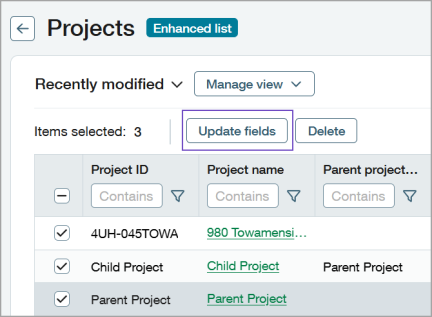
For example, at the end of the year you might want to change the status of projects that were completed in that year. To do this, you can filter for a completed status with an end date before the new year. Then select all the projects, change the status to inactive, and update the selected projects to the new status.
Why the change
Previously, you were unable to update the records for multiple projects in a single procedure. The new Manage Projects feature solves this pain point and provides:
- Streamlined project management.
- Improved performance with faster load times.
- Improved overall user experience.
Action required
To ensure optimum security, you need to set the Manage Projects permission for the desired user types and roles. The Manage Projects permission validates that the person attempting to make mass updates has the necessary privileges to edit the selected projects.
The Manage Projects permission can be assigned to the following user types:
-
Business user with admin privileges
-
Business user
-
Product Manager
For information on how to set the Product Manager permission, see Video: Assign permissions or the help page Manage Projects.
How it works
The new Manage Projects feature uses the following workflow:
- Go to Projects > Setup > Projects.
- Filter for a list the projects that need to be changed, then select the projects in the list.
- Select Update fields.
- Make the necessary changes to the desired fields and select Save.
For detailed instructions, see the help page for Manage Projects.
Permissions and other requirements
| Subscription |
Projects |
|---|---|
| Regional availability |
All regions |
| User type |
Business user with admin privileges Business user Construction Manager Project Manager |
| Permissions |
Projects:
|
| Dependencies or other requirements |
Users must have access to the projects that they’re updating. |
