Taxes
Configure and run tax box reports—General availability
You no longer need to calculate your VAT or GST tax returns outside of Sage Intacct to get insight into your upcoming tax burden. With our new tax box report feature, you can calculate your tax burden for a defined period without closing your books when using any standard or custom tax solution. You can also select a standard or custom tax solution and run a tax box report on an existing tax submission.
Details
The tax box report gives you the flexibility to create reports that match the VAT and GST returns required by your tax authority. Creating these reports is a three-step process: first you define the tax detail boxes to include in the report; then you define the tax box report format; and finally, you run the tax box report when you want insight into your company's tax burden.
Key benefits
-
Expanded regional support: You can use tax detail box reports with custom tax solutions, making it easier to calculate your tax burden for companies operating outside our standard supported regions.
-
Improved flexibility for tax reporting: No need to close your books. You can run a tax detail box report any time for a snapshot of your tax situation.
How it works
Step 1: Define the tax detail boxes
Defining your tax detail boxes is the key to creating a robust tax box report. You can add the tax details that you want to include in the box calculation, the calculation method, transaction type, and how the report displays the box amount. Our calculation field even allows you to create a derived calculation box that pulls amounts from previously defined boxes.
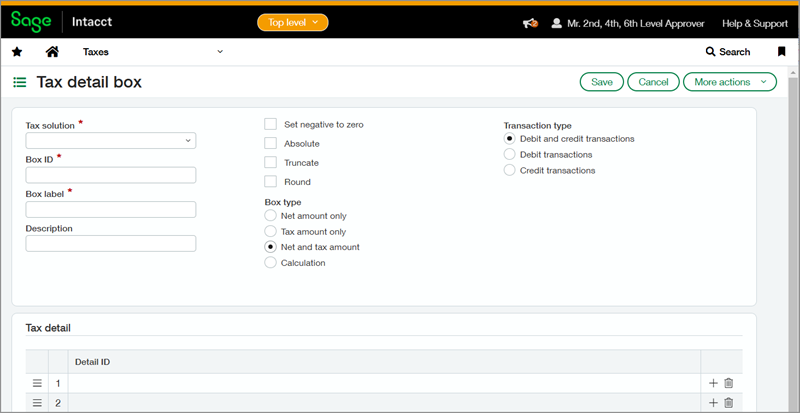
For example, you can create Box 1 to display the net and tax amount for all credit transactions for a selected list of tax details. Then you can create Box 2 to display the net and tax amount of all debit transactions for that same list of tax details. When you create Box 3, you can use the calculation field to define it as [Box 1] + [Box 2]. When you include Box 3 in your report, it displays the sum of the amounts for Box 1 and Box 2.
The tax report boxes that you define are assigned to a tax solution. The Box ID that you use must be unique within that tax solution, but you can use the same Box ID in a different tax solution. For example, a tax solution can only have one Box 1, but each tax solution can have its own Box 1.
Step 2: Create the tax box report format
After you define your tax detail boxes for a tax solution, you can create a tax box report template for that tax solution with the boxes you want to display in the report. You can also select the columns to appear in the detailed version of the report.
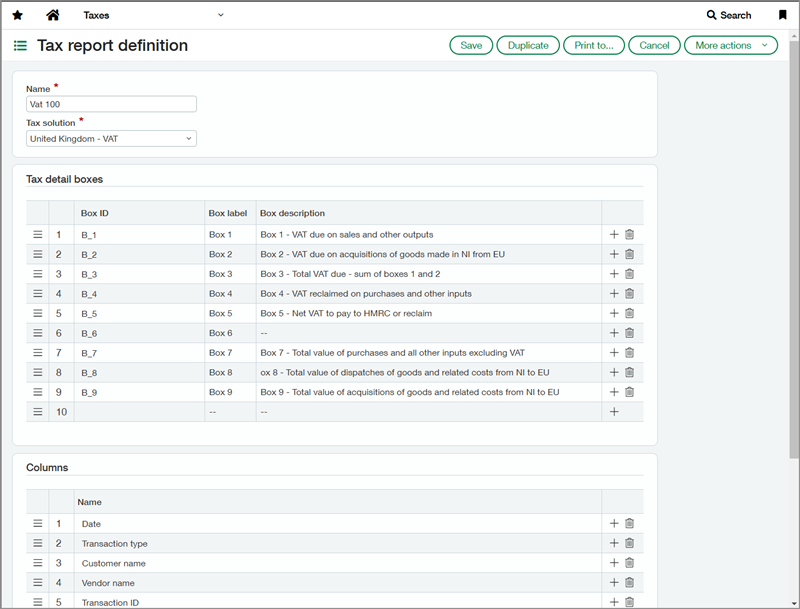
Step 3: Run the tax box report
You can run the report against a tax submission, or you can specify start and end dates based on either GL date or transaction date. Unlike when you initiate a tax submission, the report does not require you to close the books, meaning your books stay open and business runs without interruption. With the tax box report, you get real-time insight into your VAT or GST position.
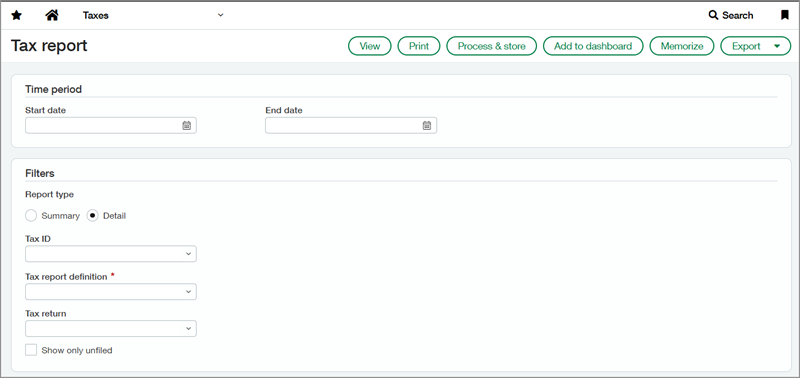
You can run the report as a summary, or you can run a detail report that displays all the included transactions broken down by box. Using this detail report, you can drill down to the associated tax record, the General Ledger batch, and then to the transaction.
Permissions and other requirements
| Subscription |
Taxes |
|---|---|
| Regional availability |
All regions |
| User type |
Business |
| Permissions |
Taxes
|
