time
Configure geofencing for time clocks—Sage Intelligent Time
This idea came from you
We're excited to introduce a mobile geofencing feature that allows you to set virtual boundaries around job sites or client locations. With permission, the Sage Intelligent Time and Expense mobile app can track the location of employees and confirm where they are when clocking in or out. This gives you clear visibility into whether employees are inside the designated boundaries at the time of their shift.
Key benefits
-
Boost payroll and billing accuracy through GPS-verified hours
-
Respects privacy with tracking and consent controls only when clocked in
-
Avoid time fraud risk with geofence-based restrictions
-
Track only when employees are on the clock, supported by consent controls
How it works
-
Go to Time > Setup > Time options > Time preferences.
-
Select Geofences.
-
Select Create geofence.
-
Enter a geofence Name.
-
For type, select Radius or Polygon.
If you select Radius, also choose a unit. -
Enter the Latitude.
-
Enter the Longitude.
-
Select the linked project, customer, or location.
-
Select the Enforcement mode.
-
Select Create.
-
Go to Time > Setup > Time options > Time preferences.
-
Select Geofences.
-
Select Employee geofence assignments.
-
Select the checkboxes for the employees that you want to assign.
-
Select Assign geofence.
-
Select the geofence.
-
Select Assign.
-
Open the Sage Intelligent Time and Expense mobile app.
-
Select Log in with Intacct.
-
Enter your Company ID.
-
Enter your User ID.
-
Enter your Password.
-
Select Log in.
-
Select the side bar.
-
Select My time clocks.
-
For the Location tracking consent, select the checkbox and Accept & continue.
-
Select Clock in.
-
Select the side bar.
-
Select My time clocks.
-
Select Clock out.
Good to know
-
You configure geofences and assign employees to them in Sage Intacct. Geofencing can only be used for time clocks in the Sage Intelligent Time and Expense mobile app.
-
Your user type, role, and permissions in the mobile app are the same as in Sage Intacct.
-
When employees consent to location tracking, the Sage Intelligent Time and Expense mobile app tracks their location while they’re clocked in and stops tracking when they clock out.
-
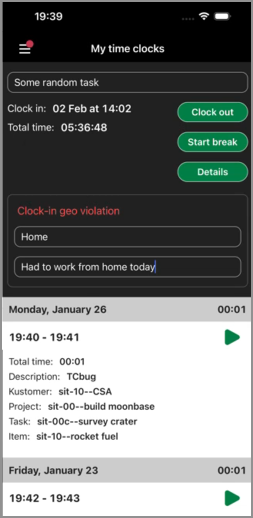
If an employee attempts to clock in or out outside the virtual boundaries, the mobile app displays a warning message. This notifies them to clock in or out within those boundaries. Employees can still complete the action even if they are outside the geofence.
-
The same behavior applies when employees clock in or out of break.
-
The warning message: "You are currently outside the defined job site. This clock-in will proceed but may be reviewed by your supervisor."
-
Permissions and other requirements
| Subscription |
A subscription to at least one of the following Sage Intacct applications is required:
|
|---|---|
| Regional availability |
|
| User type |
Business Project Manager Employee |
| Permissions |
Time
|
| Configuration |
