Fixed Assets Management
Reverse depreciation postings
Correct depreciation mistakes without deleting journal entries or relying on manual workarounds. You can now reverse posted depreciation directly within Fixed Assets Management. Reversing creates an offsetting journal entry and preserves the original posting.
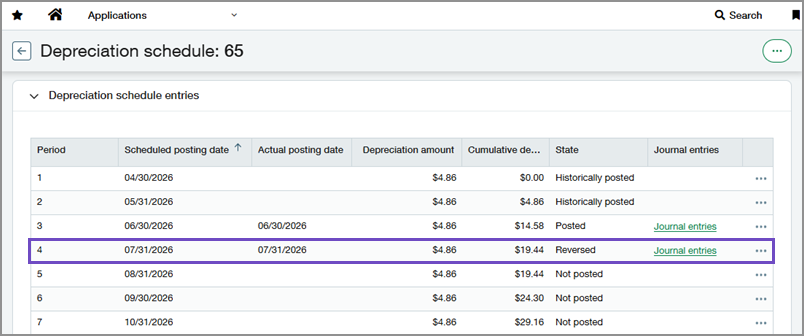
Previously, you could only revert depreciation, which deletes the original posting and is not permitted in some regions.
Key benefits
-
Improved traceability: Preserve the original postings while clearly recording corrections.
-
Flexible recovery: Reverse posted depreciation and repost the period again when you’re ready.
-
Reduced manual effort: Eliminate manual journal entry adjustments in the General Ledger.
What's changed
-
You can choose Reverse or Revert depreciation by setting the Correction treatment configuration.
-
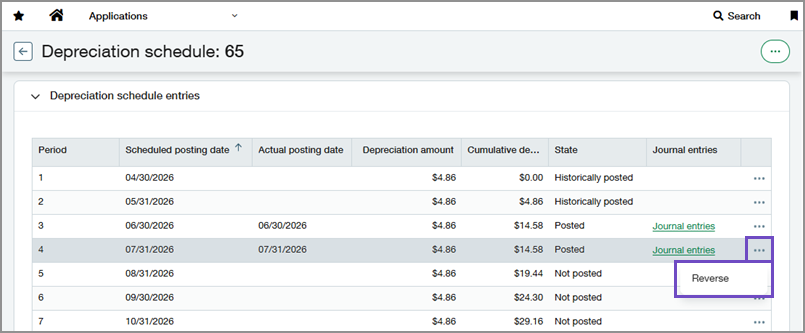
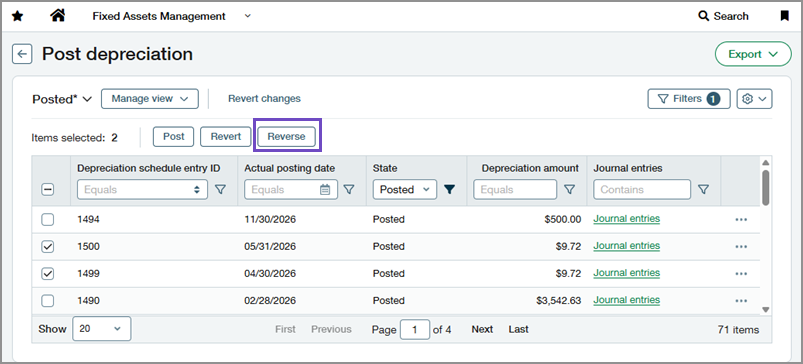
A Reverse action is available for posted depreciation entries on the Depreciation Schedule and Post Depreciation pages.
-
When you reverse a depreciation entry, the entry is marked as Reversed and an offsetting journal entry is created automatically.
-
Depreciation entries can now be linked to multiple journal entries. To support this, the Journal entry no. column is replaced with a Journal entries link. The link opens a list of all related depreciation expense and reversal journal entries.
Good to know
-
Configuration is permanent at this time. After you set Correction treatment to Reverse, you cannot use revert actions, such as reverting transfers or disposals.
-
Assets with reversed depreciation entries cannot be deleted.
-
Reversal journal entries debit the Accumulated depreciation GL account and credit the Depreciation expense GL account.
Example journal entriesDepreciation expense journal entry:
Journal entry for a depreciation expense GL account
Debit ($)
Credit ($)
Depreciation expense 500.00 Accumulated depreciation 500.00 Reverse depreciation expense journal entry:
Journal entry for reversing a depreciation expense GL account
Debit ($)
Credit ($)
Accumulated depreciation 500.00 Depreciation expense 500.00
How it works
-
Go to Fixed Assets Management > Setup > Configuration.
-
Select Edit.
-
In the Journals and accounts section, set Correction treatment to Reverse.
Setting Correction treatment to Reverse is permanent. After you set it, you cannot use any revert actions, such as reverting transfers or disposals.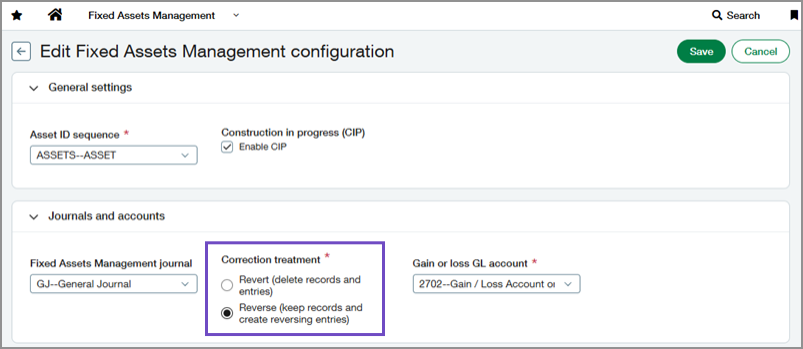
-
Select Save.
-
Go to Fixed Assets Management > All > Assets.
-
Find the asset that you want to update.
-
Select the asset's name to view it.
-
Select the Depreciation schedules tab.
-
Select a schedule's ID to view it.
-
For the most recently posted depreciation entry, select More actions > Reverse.
-
Select a Reversal date.
-
Select Reverse to confirm.
-
Go to Fixed Assets Management > All > Post depreciation.
-
From the views dropdown at the top left, select the Posted view.
-
Select the checkboxes next to the entries that you want to reverse.
-
Select Reverse.
-
Select a Reversal date.
-
Select Reverse to confirm.
Permissions and other requirements
| Subscription |
Fixed Assets Management Administration (for setup) |
|---|---|
| Regional availability |
All regions |
| User type |
Business user with admin privileges (for setup) Business |
| Permissions |
Fixed Assets Management
Administration (for setup)
|
| Configuration |
In Fixed Assets Management configuration, Correction treatment must be set to Reverse. |
| Restrictions |
At this time, setting Correction treatment to Reverse is permanent. After you set it, you cannot use any revert actions, such as reverting transfers or disposals. |
