Fixed Assets Management
Split an asset into multiple assets
Easily manage assets that need to be tracked separately. You can now split an existing asset into up to 20 independent assets while preserving depreciation accuracy and history.
This enhancement gives you more flexibility to manage depreciation, transfers, and disposals without manual workarounds. Fixed Assets Management automatically allocates values and maintains a clear link between the original asset and the assets created by the split.
Key benefits
-
Greater asset flexibility: Split an asset directly from the asset record and manage the resulting assets separately.
-
Accurate depreciation: Automatically allocate depreciation while keeping totals aligned with the original asset.
-
Preserved audit trail: Maintain a clear history that links the original asset to all assets created by the split.
-
Reduced manual effort: Eliminate workarounds and manual adjustments when assets need to be tracked, transferred, or disposed separately.
What's changed
A Split action is now available on assets that are in Ready for Review or In Service states. You can use it to split an asset into a maximum of 20 assets.
When you split an asset, the following changes occur:
-
The original asset state changes to Split.
-
Unposted depreciation periods on the original asset are marked as Canceled. Posted periods remain posted.
-
New assets inherit periods posted before the split date as Historically posted.
-
Depreciation amounts are allocated to new assets based on their proportion of the original asset cost.
Assets also include a Splits tab, which shows the split date and the relationship between the original asset and the assets created by the split.
Good to know
-
Assets with partial disposals cannot be split at this time.
-
An asset that has been split cannot be edited, deleted, or split again.
-
Assets created by a split cannot be deleted or reverted to the Ready for review state. Each can be split one additional time.
-
You can only edit the following fields on assets created by a split: Asset name, Status, Serial number, Quantity, Parent asset, Description, Notes, Attachment, Asset tag, Dimensions, and custom fields.
How it works
- Go to Fixed Assets Management > All > Assets.
- Find the asset that you want to split.
- Select the asset's name to view it.
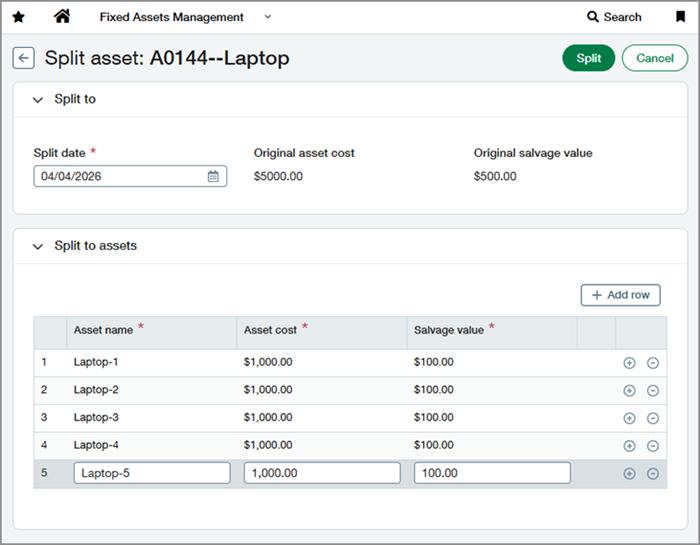
- At the top-right of the page, select Split.
- Select a Split date.
-
Enter the names, costs, and salvage values for the assets created by the split.
The total cost of the resulting assets must equal the original asset’s cost, and their total salvage value must equal the original asset’s salvage value.
- Select Split.
Permissions and other requirements
| Subscription |
Fixed Assets Management |
|---|---|
| Regional availability |
All regions |
| User type |
Business |
| Permissions |
Fixed Assets Management
|
