Sage AI and Automation
Link to custom views from tasks in Close Workspace
Improve the efficiency of your close process by including a link to a custom view in custom task templates. When employees are working on their tasks, they can select the link to go directly to that view.
Custom views are created on list pages in Sage Intacct so that the list includes the specific information needed. The custom view must be made public to add it to a task template.
Key benefits
As employees work through tasks to complete the close process, they gain the following benefits from this enhancement:
-
Faster access to relevant data: Go directly to a custom view that’s already filtered and organized to fit the current task.
-
Reduced navigation: Eliminate extra filtering steps and uncertainty regarding which view is best for the current task.
-
More consistent workflows: Work from the same set of focused, task-specific information that everyone else uses.
How it works
You can link to a custom view that has been made public. You can add the link to a custom task template or to a custom task that has already been added to a checklist template. Then when employees view their tasks, they can select the link to go directly to the custom view.
Transaction definitions are an exception for this feature. Pages that list transactions created from transaction definitions support custom views, but you cannot link to them from a task.
Add a link to a task template
-
Go to Close Workspace > Setup > Templates for Close Workspace > Task templates.
-
Select Add to create a new custom task template, or find an existing one in the list and select Edit.
-
If you're creating a new task template, fill in the required information. See Create a custom task template for more information.
-
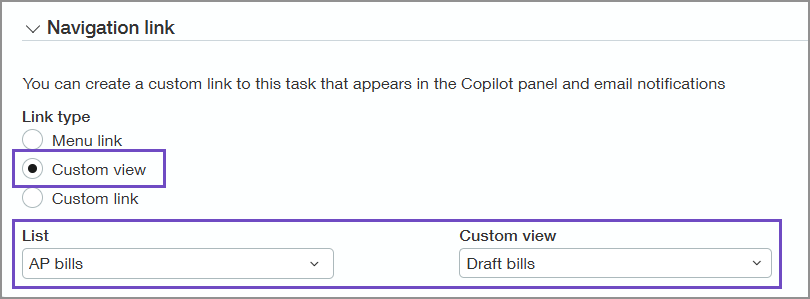
In the Navigation link section under Link type, select Custom view.
-
In the List field, select the list page where the custom view was created.
-
Select the Custom view.
-
Select Save.
Add a link to a checklist template task
-
Go to Close Workspace > Setup > Templates for Close Workspace > Checklist templates.
-
Find the checklist that contains the task and select Edit.
-
Under Close tasks, find the custom task and select Edit.
-
In the Navigation link section under Link type, select Custom view.
-
In the List field, select the list page where the custom view was created.
-
Select the Custom view.
-
Select Save.
Permissions and other requirements
| Subscription |
Sage Intacct Close Automation |
|---|---|
| Regional availability |
All regions |
| User type |
Business |
| Permissions |
Sage Intacct Close Automation
|
| Dependencies or other requirements |
The custom view must be public. |
