Fixed Assets Management
Other enhancements for Fixed Assets Management
These ideas came from you
This release also includes the following updates to improve your Fixed Assets Management experience.
Import asset classifications in bulk
Create multiple asset classifications at once using the import service. Bulk importing classifications streamlines Fixed Assets Management setup, reduces the time and effort required to create classifications individually, and supports large classification structures.
How it works
Go to Fixed Assets Management > All > Asset classifications and select Import.
| Subscription | Fixed Assets Management |
|---|---|
| Regional availability | All regions |
| User type | Business |
| Permissions | Classification: List, Add |
| Restrictions | Only creating asset classifications is supported at this time. Updates are not supported. |
Display depreciation details in the Roll Forward report
The Roll Forward report now includes depreciation rule and depreciation schedule fields. To add these fields to the report, select the fields from Additional fields to display and set the Report type to Detail. These fields provide greater visibility into the depreciation settings and balances associated with each depreciable asset.
Depreciation rule ID
Depreciation method
Depreciation rate (%)
Journal rule
Useful life
Useful life units
Coefficient
Convention
Journal ID
Book ID
Historical accumulated depreciation
Schedule ID
Total accumulated depreciation
Remaining depreciation
Additionally, Journal and Book are now available under Additional fields to display instead of as default report columns.
How it works
Go to Fixed Assets Management > All > Roll forward report.
| Subscription | Fixed Assets Management |
|---|---|
| Regional availability | All regions |
| User type | Business Employee |
| Permissions | Roll forward report: Run |
View the last actual posting date for depreciation schedules
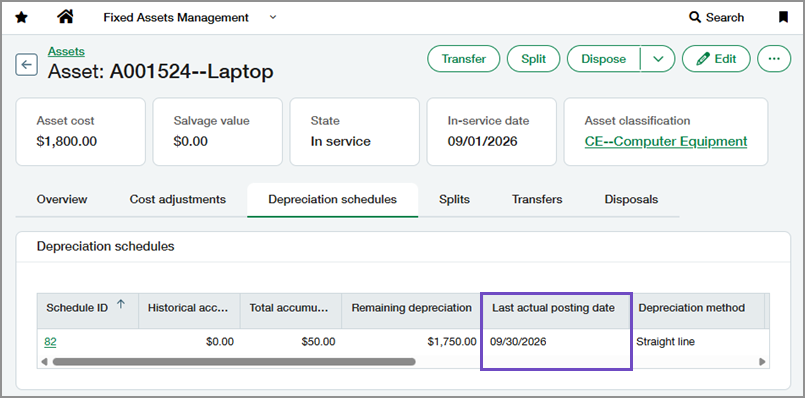
The Depreciation schedules tab on the asset record now includes a Last actual posting date column. The column displays the actual posting date of the most recent depreciation entry in the Posted state, making it easier to see when depreciation was last posted.
How it works
Open an asset's Depreciation schedules tab.
| Subscription | Fixed Assets Management |
|---|---|
| Regional availability | All regions |
| User type | Business Employee |
| Permissions | Asset: List, View |
View depreciation entry IDs in depreciation schedules
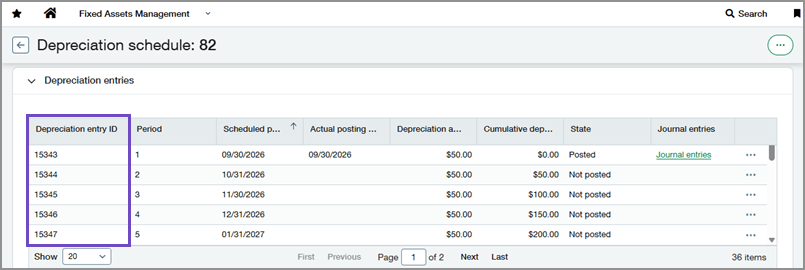
Depreciation schedules now include a Depreciation entry ID column. Use the ID to more easily identify and track depreciation entries across depreciation schedules, the Post Depreciation page, and bulk action runs.
How it works
Open an asset's Depreciation schedules tab and select a schedule.
| Subscription | Fixed Assets Management |
|---|---|
| Regional availability | All regions |
| User type | Business Employee |
| Permissions | Asset: List, View |
Changes to capitalization fields
In Custom reports, the Capitalization date field has moved from the Asset data source to the Capitalization data source. Existing reports that use this field must be updated accordingly.
Additionally, existing Asset list views that include the Capitalization date or Capitalization journal entry fields must be updated. Remove these fields, then save the view. These fields are no longer available in Asset list views.
| Subscription | Fixed Assets Management Platform Services or Customization Services |
|---|---|
| Regional availability | All regions |
| User type | Business |
| Permissions | Fixed Assets Management
Platform Services or Customization Services
|
