Find and fix CSV import errors
Related information
 Related topics
There are a number of reasons that CSV imported records fail, such as duplicated entries or invalid field values. Sage Intacct provides information about the failed records in an attempt to help you fix the import error.
Where to find import error details
You can find CSV import error details in the following places.
The CSV import confirmation page
The import confirmation page shows how many records failed and provides a link to download a CSV file that only contains the failed records.
Records that are successfully imported are not returned in the failed records CSV file.
Select the link and download the CSV file.
The error message email
An email that has all the errors for an import is sent to the email entered on the Import Company Information popup. The email lists all error codes and messages for your attempted import.
The import pages also allow another email address to be explicitly entered in the Email results to this address field.
The error email is sent to the address linked to the user ID at upload. If that’s unavailable, it goes to the company contact’s email.
If you do not enter your email in the Import Company Information dialog or select the confirmation link, you cannot retrieve the CSV error report for that CSV import.
Best practice: enter your email in the Import Company Information dialog box at the beginning of every import.
You receive a separate email with error messages because a record can fail for multiple reasons. Listing all errors in the CSV file could make it hard to read, especially when thousands of records are uploaded. Including all error details in the file could make it large and cumbersome.
How to read the error message email
Error messages are grouped by type and listed in the order that they were found. We recommend that you:
- Start at the top of the email and review each error message section.
- Within each error message section, read from the bottom up. The error at the bottom of the section is the first error encountered during import.
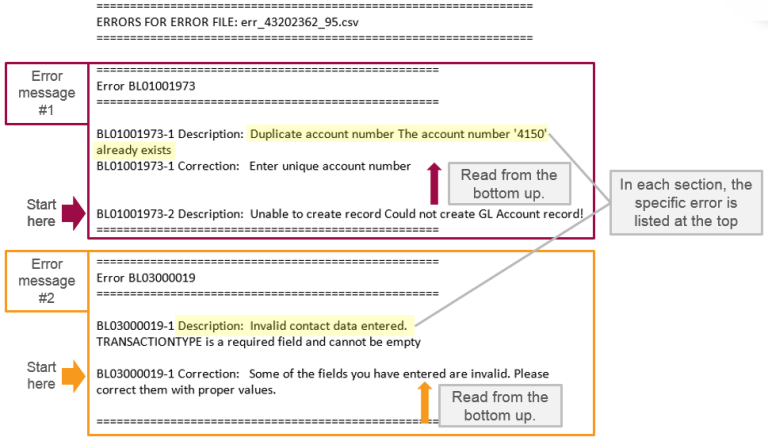
Fix the first error first and try importing the records again.
The initial issue often causes later errors. Fixing the first error can resolve many of the others automatically.
Start at the top of the email
Error messages are presented in sections, and the sections are listed in the order the errors are encountered in your file.
For example, in the graphic above, the first error message reads:
===================================================
Error BL01001973
===================================================
BL01001973-1 Description:  Duplicate account number The account number
'4150' already exists
BL01001973-1 Correction:   Enter unique account number
BL01001973-2 Description:  Unable to create record Could not create
GL Account record!
===================================================
When reading the error messages, start with the first section, such as the one above.
BL01001973 above, are Intacct internal codes. These internal codes might help Intacct find the source of a systemic issue, if one is identified.Read from the bottom of the error message up
In the above example of an error message, look at the error BL01001973-2 Description: Unable to create record Could not create GL Account record! first. This identifies the first error that was encountered during import. It's not informative, however, so look at the next error message for more information.
The next error, BL01001973-1 Correction: Enter unique account number, explains why the GL account record was not created, but does not clearly show how to fix it.
The final error message in the example above (as read from the bottom up), BL01001973-1 Description: Duplicate account number The account number '4150' already exists, describes more fully the cause of the error and suggests a fix: find and delete the duplicate account number.
It’s possible to have several errors for a single failed record. Resolve all the errors in a row before attempting to upload the file again.
Avoid common import errors
Intacct recommends following these guidelines to avoid import errors.
In Microsoft Excel:
- Select all cells.
- Right-click the cells and select Format Cells.
- On the Number tab, select Text and then select OK.
- Save the file.
The short date format is formatted like this: 3/15/2021
In Microsoft Excel:
- Select a column of dates.
- Right-click the column and select Format Cells.
- On the Number tab, select Date and select the short date format.
- Save the file.
While spaces within memo fields are allowed, make sure that there are no leading or trailing spaces in any field (not just memos). Leading and trailing spaces might cause import errors. For all other fields, remove unnecessary spaces at the start or end of the data.
In Microsoft Excel:
- Select a range of cells.
- On the Home tab, in the Editing group, select Find & Select and select Replace.
- In the Find what box, enter one space. Leave the Replace with box blank.
- Select Replace All. A prompt opens telling you how many spaces have been removed.
- Save the file.
Commas are used to separate fields in CSV files.
To prevent data from shifting into the wrong columns, avoid using commas in numeric and text fields.
If you must include a comma in a text field, always surround the field with double quotes, for example "Smith, John".
Headers in your CSV file must match the template exactly, including spelling, capitalization, and spacing. Even small changes (such as adding a space or changing a letter’s case) will cause the import to fail. Always use the official template provided by Sage Intacct.
ID fields must contain exact references to customers or vendors.
ID fields must match exactly, including capitalization. For example, ven100 and VEN100 do not match.
Enter the ID exactly as it appears in Intacct or you run the risk of matching transactions to the wrong vendor or customer, or having the upload fail.
If you reference a vendor, customer, term, budget, etc., in a CSV file, whatever you’re referencing must already exist in Intacct.
For example, if you’re uploading transactions for a vendor, that vendor must already exist in Intacct before you start the upload. If the vendor does not exist, the upload will fail.
This does not apply when creating new customers or vendors using the import process.
For more information about to correctly number line items, see CSV import: Line number examples.
For fields with predefined valid entries (such as True/False), use initial capitalization. For example True, not TRUE or true. IDs require exact case matches, while predefined entries require initial capitalization.
If your import template contains a country field, for example for an address, make sure that this field has an entry.
If your company has enabled ISO country codes, you must specify the country code in the country field for each record. If you’re unsure whether ISO codes are enabled, check with your administrator or test a sample import to confirm the required format.
