Create default purchasing tax schedules for projects and tasks
Related information
 Related topics
You can assign a default tax schedule for purchasing on a project. If needed, you can override that tax schedule at the task level.
The project's location determines the appropriate tax solution for currency and taxes. Assigned taxes automatically fill in purchasing line items hierarchically for the project and task.
Key benefits
- Tax schedule options for the project location are provided by your company Tax Solutions configuration.
- Only the tax schedules available for the project location are shown.
- You can set a default purchasing tax schedule for a project and tasks.
- You can override an existing project tax schedule and set a new schedule for a task, as needed.
- Purchasing line items are prefilled hierarchically with the assigned tax schedule for the project and tasks.
- The tax schedule for linked tasks prefills automatically with the tax schedule selected for the project.
| Subscription |
Projects and Grants Purchasing Taxes : Tax Solutions. Simple Tax and Advanced Tax are not supported for this feature |
|---|---|
| Regional availability |
Australia Canada United Kingdom United States |
| User type |
Business user with admin privileges Construction Manager Project Manager |
| Permissions |
Projects
Purchasing
|
What you need
- An assigned location for the project
- Tax solutions configured for your company. Simple Tax and Advanced Tax are not currently supported for this feature.
- Item and vendor set to taxable. This detail is necessary even if the item and vendor are not mapped to a tax schedule.
Specify purchasing tax schedule defaults for a project and task
- Select the company Entity, then go to Purchasing > Setup > Configuration > General configuration > Tax.
- Select Enable override tax schedule of document entity if it is not already selected.
- Go to Projects > All > Projects, find the name of the project in the list.
- Select Edit at the end of the row.
- Select the Additional Information tab.
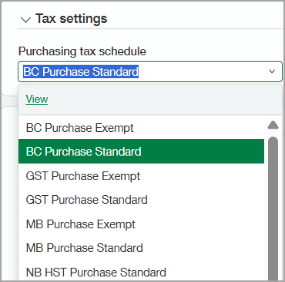
The available purchasing tax schedules reflect the assigned location for the project. To change the available tax schedules, you must change the assigned location for the project. - Select a Purchasing tax schedule for the project from the dropdown menu.
- Go to the Task tab, select Add, and provide the necessary information for the task.
- On the Task information dialog, find the newly added task and select Edit.
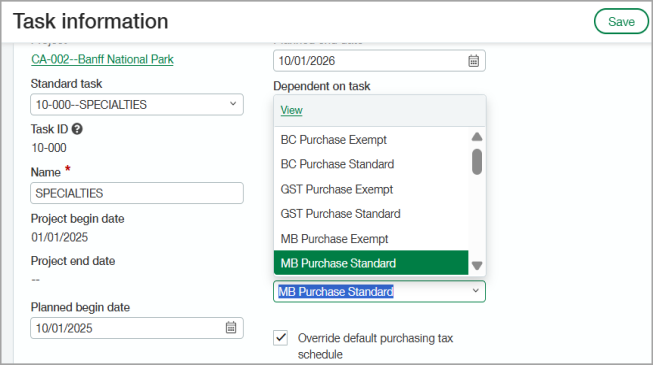
The purchasing tax schedule name is prefilled automatically from the project. - To specify a different tax schedule default for a task, do the following:
- Select the Override default tax purchasing schedule checkbox,
- Select a different Purchasing tax schedule from the dropdown menu.
The tax schedules shown are all available for the assigned project location. - Save the task.
- Save the project.
- Select the company Entity, then go to Purchasing > Setup > Configuration > General configuration > Tax.
- Select Enable override tax schedule of document entity if it is not already selected.
- Go to Projects > All > Projects, find the name of the project in the list, and select Edit at the end of the row.
- Select the Additional Information tab.
The available purchasing tax schedules reflect the assigned location for the project. To change the available tax schedules, you must change the assigned location for the project. - Select a Purchasing tax schedule for the project from the dropdown menu.
- Go to the Task tab, select Add, and provide the necessary information for the task.
- On the Task information dialog, find the newly added task, and select the Edit icon.
The purchasing tax schedule name is prefilled automatically from the project. - To specify a different tax schedule default for a task, do the following:
- Select the Override default tax purchasing schedule checkbox,
- Select a different Purchasing tax schedule from the dropdown menu.
The tax schedules shown are all available for the assigned project location. - Save the task.
- Save the project.
