Import service data validation basics
Related information
 Related topics
These tools are used after you have loaded information into the Sage Intacct import service. The workspace provides different ways to work with data in a sheet.
| Subscription | Company |
|---|---|
| Regional availability |
All regions |
| User type |
Business |
| Permissions |
Company Setup Checklist: Run |
Common actions
Workspace worksheets provide an Excel-like experience for interacting with your data.
-
Double-click on a cell to edit or delete the data.
-
Select multiple cells at a time. Select the first cell, and then hold down Shift while you select the last cell in the range.
The import service does not support CTRL-select in sheets. Only cells next to each other can be selected. -
Common keyboard shortcuts are accepted on the worksheet. These include, but are not limited to:
-
Select all
-
Copy, Paste, Cut
-
Undo
-
Import workflow tools
At the top of all import service worksheets are tools to help you learn more about your imports, or complete the import process.

-
Jobs (truck icon): Select this icon to review completed jobs performed on the current worksheet. The job IDs available in this menu might help with troubleshooting.
-
Version history (clock icon): Select this icon to view a list of snapshots taken of the current worksheet. You can revert to a previous version of the worksheet, or delete versions as needed.
-
Download: Select this button to download the current worksheet complete wither error messages. Select where the downloaded XLSX file will be saved, and review the file as needed for error messages.
-
Import: Select this button when all errors have been corrected on the current worksheet and you’re ready to import the information into Intacct.
-
Revalidate: Select this button to run the validation rules again for the current worksheet. This is useful to do when several errors have been fixed and you want to make sure there are no other errors to address before importing your file.
-
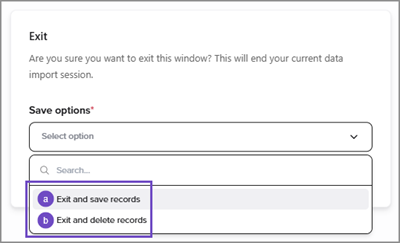
Exit: When selected, a dialogue opens that offers options for how to exit the import service. Pick an option and select Confirm.
-
Exit and save records: When selected, the import service keeps changes that you made to the import sheet you were working on. When you open the specific import again, for example, an Add lines import for Statistical accounts, the information from your previous session is available to update or import.
-
Exit and delete records: When selected, the import service removes all data from the sheet you’re exiting from. If you didn’t import that data on the sheet, the data will be lost. When returning to an import, such as 'Add lines' for Statistical accounts, a blank sheet opens with the standard options to add a file.
-
-
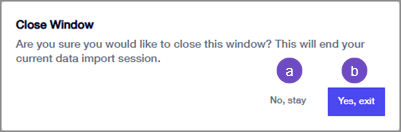
X: When selected, a dialogue opens that offers these options:
-
No, stay: Keeps you in the import service on the sheet you were working on.
-
Yes, exit: Closes the import service. The import service keeps changes that you made to the import sheet you were working on This option behaves the same as Exit and save records above.
-
Header number column
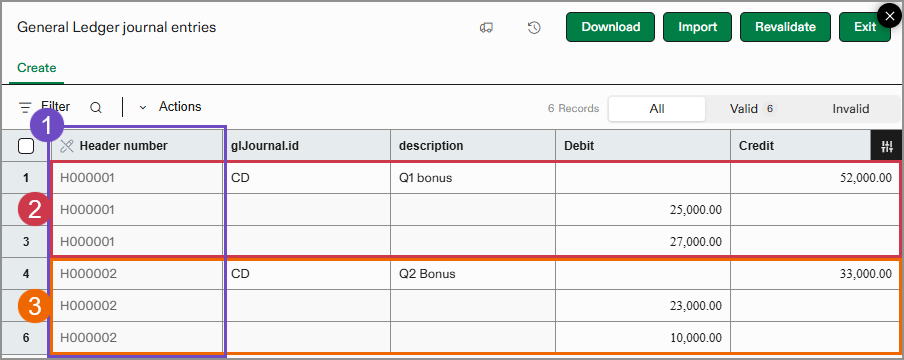
The header number column automatically assigns a non-editable number to lines in your import. This column is intended to help identify and keep sets of information together, such as lines in a journal entry. Header numbers are not imported into Intacct, but rather serve as a way to keep groups of information together, indicate line errors, and troubleshoot issues.
-
The header number column assigns numbers to information that should stay grouped together, such as lines in a journal entry.
-
Header number
H000001is assigned to all the lines in the first journal entry. -
Header number
H000002is assigned to all the lines in the second journal entry.
Delete a record or group of records
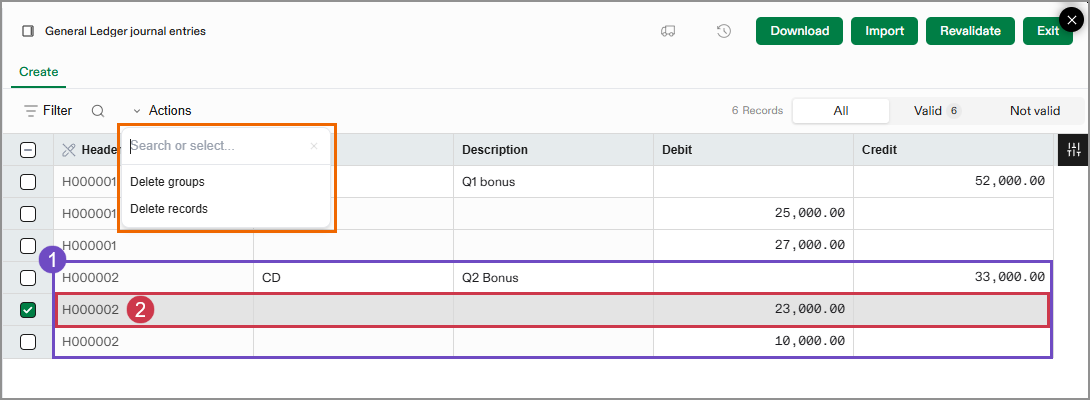
Use the Actions menu to delete either a single record or an entire group of records.
If you select a single record and select Actions > Delete group, the record and all related records in its group is deleted.
If you select a single record and select Actions > Delete record, only that record will be deleted.
-
Delete group: If you select one line from a journal entry grouped under
H000002(which includes one credit line and two debit lines), the entire journal entry will be deleted. -
Delete record: If you select one line from a journal entry grouped under
H000002, the remaining lines remain. However, you’ll need to adjust the journal entry to ensure that debits and credits still balance.
Column tools
Each header row of a column in a workspace sheet has tools to help you work with your data. Hover over the column head to see the more menu.
See column tools in action: Sort and Find and replace; Clear Column and Replace empty values.
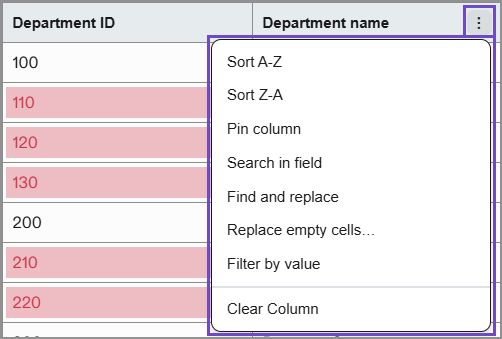
When selected, the following options are available for use:
-
Sort A-Z: Sorts the column alphabetically from A-Z.
-
Sort Z-A: Sorts the column alphabetically from Z-A.
-
Remove sort...: Removes the selected sort and returns the row order to the original uploaded order. This option is available after a column has been sorted.
-
Pin column: When selected, the current column is pinned to the left side of the table for easier reference. You can pin more than one column.
Pin the columns in the order that you want to see them at the left. -
Search in field: Searches in the selected column for a specific value and filters the displayed rows by this value.
-
Find and replace: Search the selected column for a specific value and replace that value with the one you provide.
-
Replace empty cells: Filters the selected column for empty fields and allows you to provide the value for those fields.
-
Filter by value: Hover over the menu to view the values in the column as options for filtering. Select as many values to filter by as needed. Rows are displayed based on this filter selection.
-
Clear Column: Clears the data in the column.
You cannot undo Clear Column. After a column is cleared, you must manually add the information back to the column.
